Traefik Docker Compose: v3 Reverse Proxy with Auto HTTPS
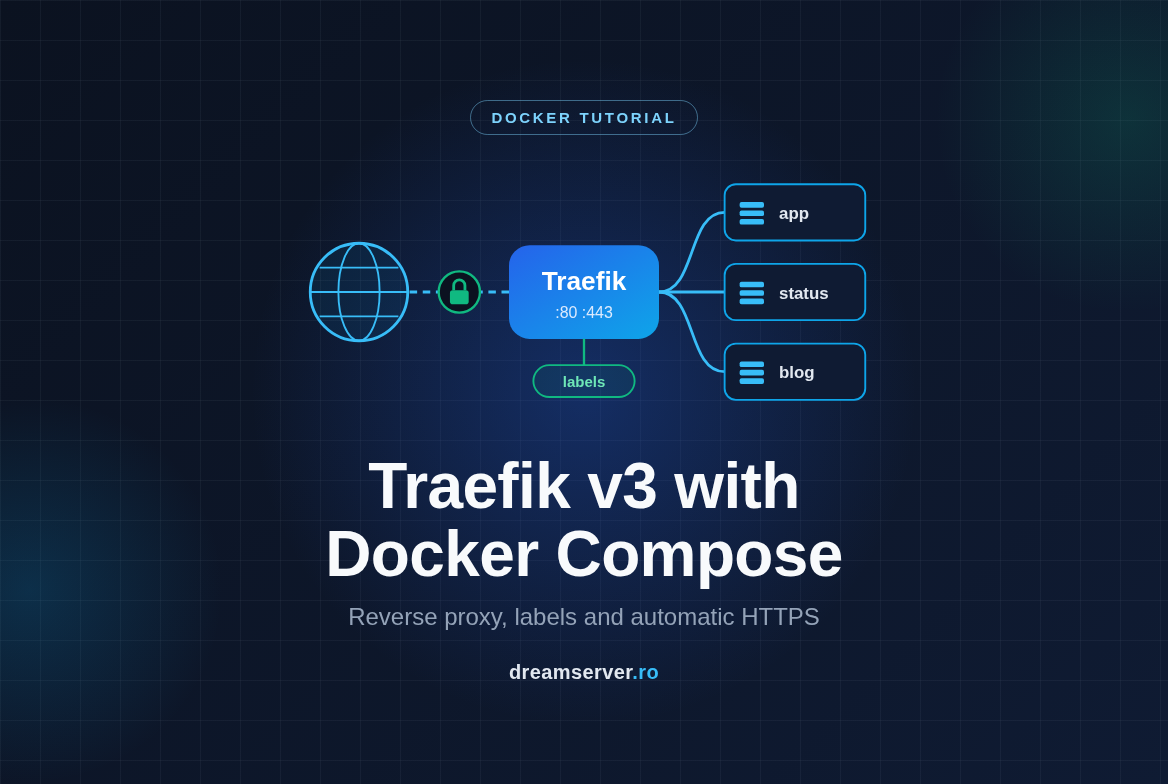
Every application you self-host wants something from you: its own port, its own domain name and, if you don’t want browsers to show a scary warning, its own HTTPS certificate. Do that by hand for three or four apps and you end up juggling Nginx config files, certbot timers and a list of port numbers you have to remember. Traefik turns this around. It watches Docker, reads a few labels you attach to each container, and builds the routing and the Let’s Encrypt certificates by itself. Start a container with the right labels and, a few seconds later, it answers on its own domain over HTTPS. Stop it, and the route disappears.
In this traefik docker compose tutorial we set up Traefik v3 as the single entry point of a fresh VPS. We route domains to containers using Docker labels, get free certificates automatically, redirect every HTTP request to HTTPS and put the Traefik dashboard behind a password. Traefik is open source (MIT license), developed by Traefik Labs, with documentation at doc.traefik.io
and code at github.com/traefik/traefik
. Every command below is copy-pasteable; you only need to replace example.com with your own domain.
What Traefik is and why you want a reverse proxy
A few terms first, because the rest of the article builds on them.
A port is a numbered door on a server. Web browsers knock on door 80 for plain HTTP and on door 443 for HTTPS. Only one program can listen on a given port at a time, which is exactly why running several web apps on one server needs some kind of traffic director.
A container is an application packaged with everything it needs, running isolated from the rest of the system. Docker is the tool that runs containers, and Docker Compose lets you describe them in a YAML file instead of typing long commands every time.
A reverse proxy is a program that sits in front of your apps. It is the only thing listening on ports 80 and 443. It looks at the domain the visitor asked for (the Host header of the request) and forwards the request to the right app behind it. Your apps never need to be reachable directly from the internet, and the reverse proxy becomes the one place where HTTPS certificates live.
Traefik is a reverse proxy built for containers. Classic proxies such as Nginx read a configuration file that you edit by hand and reload. Traefik connects to the Docker API, notices when containers start or stop, and reads their labels: small key=value annotations stored on a container, such as traefik.http.routers.blog.rule=Host(`blog.example.com`). That is the whole trick: the routing configuration lives next to the app it belongs to, inside that app’s own compose file.
The four words you need: entrypoints, routers, middlewares, services
The Traefik documentation uses four concepts everywhere. Once they click, every label in this tutorial makes sense:
- Entrypoint: a port Traefik listens on. We create two:
webon port 80 andwebsecureon port 443. - Router: a rule that matches incoming requests, usually by domain, for example
Host(`whoami.example.com`). A router also says which entrypoint it listens on and whether it uses TLS. - Middleware: an optional step that changes the request on its way through: ask for a password, redirect, add security headers.
- Service: where the request finally goes, meaning the IP address and port of a container. With Docker, Traefik discovers the IP for you; you only tell it the port.
Traefik also separates static configuration from dynamic configuration. Static configuration describes how Traefik itself starts (entrypoints, the Docker provider, the certificate resolver); we pass it as command-line flags, and changing it requires a container restart. Dynamic configuration (routers, middlewares, services) is read live from container labels, with no restart at all.
What you need
- A VPS running Debian 13 or Ubuntu 24.04 with a public IPv4 address. 1 vCPU and 1 GB of RAM are plenty for Traefik plus a few small apps. A KVM VPS is the easiest choice for Docker; inside an unprivileged LXC container, Docker only works if nesting is enabled for that container, and some features can still misbehave.
- A user with sudo rights and SSH access.
- A domain where you can edit DNS records. In the examples we use
traefik.example.comfor the dashboard andwhoami.example.comfor a test app. - An email address for your Let’s Encrypt account.
- Ports 80 and 443 free on the host. If Apache or Nginx were installed directly on the VPS, stop and disable them first (see troubleshooting).
- An up-to-date system:
sudo apt update && sudo apt full-upgrade -y
On Ubuntu, reboot if the file /var/run/reboot-required exists afterwards. Debian does not always create that file, so on Debian simply reboot if the upgrade installed a new linux-image package.
Traefik Docker Compose setup, step by step
The whole procedure has seven steps. The numbers in the diagram match the step headings below, so you can always see where you are.
Step 1: Install Docker Engine and the Compose plugin
The Docker packages in the default Debian and Ubuntu repositories tend to lag behind, so we use Docker’s official repository. The block below works on both distributions: it reads /etc/os-release to find out whether you are on Debian or Ubuntu ($ID) and which release you run ($VERSION_CODENAME, which is trixie on Debian 13 and noble on Ubuntu 24.04), then writes the repository in Docker’s current deb822 format to /etc/apt/sources.list.d/docker.sources.
sudo apt install -y ca-certificates curl
sudo install -m 0755 -d /etc/apt/keyrings
. /etc/os-release
sudo curl -fsSL "https://download.docker.com/linux/${ID}/gpg" -o /etc/apt/keyrings/docker.asc
sudo chmod a+r /etc/apt/keyrings/docker.asc
sudo tee /etc/apt/sources.list.d/docker.sources > /dev/null <<EOF
Types: deb
URIs: https://download.docker.com/linux/${ID}
Suites: ${VERSION_CODENAME}
Components: stable
Signed-By: /etc/apt/keyrings/docker.asc
EOF
sudo apt update
sudo apt install -y docker-ce docker-ce-cli containerd.io docker-buildx-plugin docker-compose-plugin
The only difference between the two distributions is the repository URL (.../linux/debian or .../linux/ubuntu), and the variables take care of it. Check that both pieces answer:
sudo docker version --format '{{.Server.Version}}'
sudo docker compose version
You should see a Docker Engine version number and a line like Docker Compose version v2.x.x. In this tutorial we run Docker commands with sudo. You can add your user to the docker group to skip it, but be aware that membership in that group is equivalent to root access on the machine.
Step 2: Point your DNS records to the VPS
Let’s Encrypt only issues a certificate for a domain if it can reach your server under that name. So, before Traefik starts, create an A record (a DNS entry that maps a name to an IPv4 address) for each hostname you plan to use, in the DNS panel of your domain provider:
| Name | Type | Value |
|---|---|---|
| traefik.example.com | A | your VPS IPv4 address |
| whoami.example.com | A | your VPS IPv4 address |
If your VPS also has IPv6 and you add AAAA records, make sure IPv6 really works on the server: when an AAAA record exists, Let’s Encrypt prefers to validate over IPv6. Check that the records resolve from the VPS:
getent ahostsv4 whoami.example.com | head -n 1
The first column must be your VPS address. If the output is empty or shows an old IP, wait a few minutes before going on. Requesting certificates for a name that does not point to you yet is the most common cause of failed validations, and repeated failures count against Let’s Encrypt rate limits.
Step 3: Create the proxy network and acme.json
Traefik must share a Docker network with every app it forwards traffic to. We create one network called proxy, outside any compose project, so every future app can join it:
sudo docker network create proxy
Next, the folder for Traefik’s files. We keep it in /opt/traefik and give your user ownership, so you can edit files without sudo:
sudo mkdir -p /opt/traefik/letsencrypt
sudo chown -R "$USER": /opt/traefik
touch /opt/traefik/letsencrypt/acme.json
chmod 600 /opt/traefik/letsencrypt/acme.json
acme.json is where Traefik stores your Let’s Encrypt account and every certificate together with its private key. Traefik refuses to use the file if its permissions are more open than 600 (read and write for the owner only), which is why we set them explicitly.
Step 4: Write the Traefik compose.yaml
First, a small .env file. Docker Compose reads it automatically and replaces ${VARIABLE} placeholders in the compose file, so your personal values stay out of the YAML:
cd /opt/traefik
cat > .env <<'EOF'
ACME_EMAIL=you@example.com
TRAEFIK_DOMAIN=traefik.example.com
EOF
chmod 600 .env
Replace both values with yours. Now create the compose file with nano /opt/traefik/compose.yaml (the older name docker-compose.yml works too) and paste:
services:
  traefik:
    image: traefik:v3
    container_name: traefik
    restart: unless-stopped
    command:
      - --providers.docker=true
      - --providers.docker.exposedbydefault=false
      - --providers.docker.network=proxy
      - --entrypoints.web.address=:80
      - --entrypoints.web.http.redirections.entrypoint.to=websecure
      - --entrypoints.web.http.redirections.entrypoint.scheme=https
      - --entrypoints.websecure.address=:443
      - --entrypoints.websecure.http.tls.certresolver=le
      - --certificatesresolvers.le.acme.email=${ACME_EMAIL}
      - --certificatesresolvers.le.acme.storage=/letsencrypt/acme.json
      - --certificatesresolvers.le.acme.httpchallenge=true
      - --certificatesresolvers.le.acme.httpchallenge.entrypoint=web
      - --api.dashboard=true
      - --log.level=INFO
      - --accesslog=true
    ports:
      - "80:80"
      - "443:443"
    volumes:
      - /var/run/docker.sock:/var/run/docker.sock:ro
      - ./letsencrypt:/letsencrypt
    networks:
      - proxy
    logging:
      driver: json-file
      options:
        max-size: "10m"
        max-file: "3"
    labels:
      - "traefik.enable=true"
      - "traefik.http.routers.dashboard.rule=Host(`${TRAEFIK_DOMAIN}`)"
      - "traefik.http.routers.dashboard.entrypoints=websecure"
      - "traefik.http.routers.dashboard.service=api@internal"
      - "traefik.http.routers.dashboard.middlewares=dashboard-auth"
      - "traefik.http.middlewares.dashboard-auth.basicauth.users=${DASHBOARD_AUTH}"

networks:
  proxy:
    external: true
Note that there is no version: key at the top: current Docker Compose v2 no longer needs it. Here is what each part does:
image: traefik:v3: the current major version tag. It follows every v3.x release, so a laterdocker compose pullbrings fixes without jumping to a future v4 with breaking changes. Check the Traefik releases page for the newest version and its notes; if you prefer full control, pin an exactv3.xtag instead.providers.docker=true: tells Traefik to read containers and their labels from Docker.providers.docker.exposedbydefault=false: a container is ignored unless it carriestraefik.enable=true. Without this, every container you start would get a public route, databases included.providers.docker.network=proxy: when a container sits on several networks, Traefik uses theproxynetwork to reach it.entrypoints.webandentrypoints.websecure: the two doors, ports 80 and 443.entrypoints.web.http.redirections...: every request arriving on port 80 is permanently redirected to HTTPS. The Let’s Encrypt HTTP challenge still works, because Traefik answers it with a higher priority than the redirect.entrypoints.websecure.http.tls.certresolver=le: every router on port 443 gets TLS and a certificate from the resolver namedleby default.certificatesresolvers.le.acme.*: the Let’s Encrypt setup: your email, where certificates are stored, and the HTTP-01 challenge on thewebentrypoint (Let’s Encrypt fetches a token over port 80 to prove you control the domain).api.dashboard=true: enables the web dashboard. We never expose it directly, only through the protected router defined in the labels.ports: the only place in the whole setup where ports are published to the internet./var/run/docker.sock:ro: lets Traefik watch Docker. More on what that implies in the security notes.logging: caps Docker logs at three files of 10 MB, so access logs never fill the disk. We set it per service, so there is no need to touch Docker’s globaldaemon.json.- The
labelson Traefik itself create the dashboard router:api@internalis Traefik’s built-in dashboard service, anddashboard-authis the password middleware we fill in during the next step.
Tip: while you are testing, add - --certificatesresolvers.le.acme.caserver=https://acme-staging-v02.api.letsencrypt.org/directory to the command list. The staging server issues untrusted test certificates but has much more generous limits, so mistakes do not lock you out of production. Before going live, remove the line, empty acme.json (see troubleshooting) and start again.
Step 5: Protect the dashboard with a password
The dashboard shows every router, service and middleware Traefik knows about. That is useful to you and equally useful to an attacker, so we protect it with HTTP basic authentication. Traefik expects the user and a hashed password in htpasswd format. Install the tool that generates it (the package is called apache2-utils on both Debian and Ubuntu) and append the result to .env:
sudo apt install -y apache2-utils
cd /opt/traefik
echo "DASHBOARD_AUTH='$(htpasswd -nB admin)'" >> .env
htpasswd asks for the password twice and produces a line like admin:$2y$05$Qe.... The -B flag uses bcrypt, a deliberately slow hash that resists brute force. Now look at the file:
cat .env
The last line must look like DASHBOARD_AUTH='admin:$2y$05$...', wrapped in single quotes. They matter: the hash contains $ characters, and inside single quotes Compose takes them literally instead of treating them as variables. If you ever paste a hash directly into compose.yaml instead, you have to double every $ as $$.
Step 6: Start Traefik and verify the certificates
Time to start the proxy:
cd /opt/traefik
sudo docker compose up -d
sudo docker compose ps
Compose pulls the image and starts the container. The ps output should show it running with both ports published (trimmed here):
NAME      IMAGE        SERVICE   STATUS         PORTS
traefik   traefik:v3   traefik   Up 8 seconds   0.0.0.0:80->80/tcp, [::]:80->80/tcp, 0.0.0.0:443->443/tcp, [::]:443->443/tcp
As soon as it sees the dashboard router, Traefik asks Let’s Encrypt for a certificate for traefik.example.com. Follow the logs to see whether it worked:
sudo docker compose logs -f traefik
With log.level=INFO Traefik is fairly quiet; problems appear as lines marked ERR, often containing Unable to obtain ACME certificate. Access log lines appear as requests arrive. Press Ctrl+C to stop following; the container keeps running.
Now open https://traefik.example.com/dashboard/ in your browser (keep the trailing slash). You should get a padlock, a login prompt, and after entering admin and your password, the dashboard. You can confirm the same from the command line:
curl -sI https://traefik.example.com/dashboard/ | head -n 1
curl -sI -u admin https://traefik.example.com/dashboard/ | head -n 1
The first command should print HTTP/2 401: TLS worked (otherwise curl would stop with a certificate error) and a password is required. The second asks for the password and should print HTTP/2 200.
Step 7: Add an application with Docker labels
Now the part that makes Traefik pleasant to live with. We deploy traefik/whoami, a tiny web server that prints details about each request, in its own folder and its own compose project, completely separate from Traefik:
sudo mkdir -p /opt/whoami
sudo chown "$USER": /opt/whoami
cd /opt/whoami
nano compose.yaml
Paste:
services:
  whoami:
    image: traefik/whoami
    container_name: whoami
    restart: unless-stopped
    networks:
      - proxy
    labels:
      - "traefik.enable=true"
      - "traefik.http.routers.whoami.rule=Host(`whoami.example.com`)"
      - "traefik.http.routers.whoami.entrypoints=websecure"
      - "traefik.http.routers.whoami.tls.certresolver=le"
      - "traefik.http.services.whoami.loadbalancer.server.port=80"

networks:
  proxy:
    external: true
We use the image without a tag (meaning :latest) because this is a throwaway test container; for real apps prefer a version tag. Line by line, the labels say: Traefik, please handle this container; create a router named whoami that matches the domain whoami.example.com; listen on the HTTPS entrypoint; get a certificate from le (already the default from Step 4, but writing it makes the file self-explanatory); and send the traffic to port 80 inside the container. Notice what is missing: there is no ports: section. The container is reachable only through Traefik over the proxy network.
Start it and test both HTTP and HTTPS:
sudo docker compose up -d
curl -sI http://whoami.example.com | grep -iE '^(HTTP|location)'
curl -s https://whoami.example.com
The first test should show a permanent redirect to HTTPS, for example:
HTTP/1.1 308 Permanent Redirect
Location: https://whoami.example.com/
Depending on the Traefik version you may see 301 Moved Permanently instead; for browsers both mean “always use HTTPS”. The second test returns something similar to:
Hostname: 3f2a1c9d8e7b
IP: 127.0.0.1
IP: 172.18.0.3
RemoteAddr: 172.18.0.2:41234
GET / HTTP/1.1
Host: whoami.example.com
X-Forwarded-For: 203.0.113.25
X-Forwarded-Proto: https
X-Real-Ip: 203.0.113.25
X-Forwarded-Proto: https and X-Forwarded-For (your own IP) prove the request went through Traefik. In the dashboard, under HTTP Routers, you will now see whoami@docker with a TLS shield next to it. No reload, no restart of Traefik: it noticed the new container on its own.
Adding more sites: the label pattern to remember
Every new app follows the same five rules: join the proxy network, set traefik.enable=true, give the router a unique name and a Host() rule, put it on websecure with the le resolver, and tell Traefik the port the app listens on inside the container. Here is a real app, Uptime Kuma, listening on port 3001:
services:
  uptime-kuma:
    image: louislam/uptime-kuma:2
    restart: unless-stopped
    volumes:
      - kuma_data:/app/data
    networks:
      - proxy
    labels:
      - "traefik.enable=true"
      - "traefik.http.routers.kuma.rule=Host(`status.example.com`)"
      - "traefik.http.routers.kuma.entrypoints=websecure"
      - "traefik.http.routers.kuma.tls.certresolver=le"
      - "traefik.http.services.kuma.loadbalancer.server.port=3001"

volumes:
  kuma_data:

networks:
  proxy:
    external: true
As always, check the project’s releases for the newest major tag. WebSockets, which Uptime Kuma uses for its live dashboard, pass through Traefik without extra configuration.
A few variations you will need sooner or later:
- Several domains on one app:
Host(`example.com`) || Host(`www.example.com`). Traefik requests one certificate covering both names. - Apps with a database: put only the web container on
proxy. The database joins a second, private network shared with the app and never touchesproxy. An excerpt:
services:
  app:
    networks: [proxy, internal]
  db:
    image: postgres:17
    networks: [internal]

networks:
  proxy:
    external: true
  internal:
- Reusable security headers: add these labels to the Traefik container in
/opt/traefik/compose.yamland runsudo docker compose up -dthere to recreate it:
      - "traefik.http.middlewares.secure-headers.headers.stsSeconds=31536000"
      - "traefik.http.middlewares.secure-headers.headers.contentTypeNosniff=true"
      - "traefik.http.middlewares.secure-headers.headers.referrerPolicy=strict-origin-when-cross-origin"
Any app can then use them with traefik.http.routers.kuma.middlewares=secure-headers@docker. Be careful with stsSeconds (HSTS): once a browser sees it, it refuses plain HTTP for that domain for a year, so enable it only when HTTPS works reliably.
How much does Traefik cost in resources?
Traefik is written in Go and ships as a single binary. It uses more memory than a bare Nginx, because it keeps the Docker state, the routing tables and the certificate manager in memory, but the difference rarely matters on a modern VPS.
What you buy with those extra megabytes is time: adding a site means a few labels in the app’s own file instead of a new server block, a certbot run and a reload. Under real traffic, memory grows with the number of open connections for every proxy in the chart, so treat these numbers as an order of magnitude, not a benchmark. CPU use at idle is negligible for all of them.
Troubleshooting and common mistakes
404 page not found from Traefik. The request reached Traefik but no router matched it. Usually traefik.enable=true is missing, the domain in Host() has a typo, or the app container is not running. Open the dashboard, look under HTTP Routers, and check errors with sudo docker compose logs traefik | grep -i err in /opt/traefik.
Bad Gateway (502) or Gateway Timeout (504). A router matched, but Traefik cannot talk to the container. Either the port label is wrong (it must be the port the app listens on inside the container) or the container is not on the proxy network. Check with:
sudo docker inspect whoami --format '{{json .NetworkSettings.Networks}}'
The output must contain "proxy".
The browser warns about a certificate named TRAEFIK DEFAULT CERT. Traefik could not get a Let’s Encrypt certificate and fell back to its self-signed one. The logs show why: DNS not pointing to the VPS yet, port 80 not reachable, a broken AAAA record or a rate limit after too many failed attempts. Fix the cause, then run sudo docker compose restart traefik.
permissions 644 for /letsencrypt/acme.json are too open. Run chmod 600 /opt/traefik/letsencrypt/acme.json and restart Traefik.
client version 1.24 is too old in the logs. You are running an older Traefik image that predates the API changes in recent Docker Engine releases. Pull the current v3 image: sudo docker compose pull && sudo docker compose up -d.
The dashboard keeps asking for the password. The hash was mangled, usually because the $ signs were interpolated. Check what Traefik actually received:
sudo docker inspect traefik --format '{{ index .Config.Labels "traefik.http.middlewares.dashboard-auth.basicauth.users" }}'
It must start with admin:$2y$. If not, fix the single quotes in .env (Step 5) and run sudo docker compose up -d again.
bind: address already in use on port 80 or 443. Another web server runs on the host. Find it and disable it (the service names are the same on Debian and Ubuntu):
sudo ss -tlnp | grep -E ':(80|443) '
sudo systemctl disable --now nginx    # or apache2
Switching from the staging server to production. Remove the caserver line from compose.yaml, then empty the stored test certificates so Traefik requests real ones:
cd /opt/traefik
sudo docker compose down
sudo truncate -s 0 letsencrypt/acme.json
sudo docker compose up -d
truncate keeps the 600 permissions. The external proxy network survives docker compose down.
Security notes
- The Docker socket is root access. Whoever controls Traefik’s container can control Docker, and through it the whole host. The
:roflag only stops writes to the socket file itself, not API calls. Keep Traefik updated, never enable--api.insecure, and on sensitive servers consider putting a Docker socket proxy container in between that only allows read-only API endpoints. - Docker bypasses ufw. Ports published with
ports:are handled by Docker’s own firewall rules, before ufw ever sees the packet. That is why app containers in this setup publish nothing. If you need a port for local debugging, bind it to localhost only:"127.0.0.1:8080:80". - Use ufw for host services. Debian 13 does not ship ufw by default; Ubuntu 24.04 has it installed but inactive. Allow SSH before enabling it, otherwise you lock yourself out (if SSH listens on a different port, allow that port instead):
sudo apt install -y ufw
sudo ufw allow 22/tcp
sudo ufw allow 80/tcp
sudo ufw allow 443/tcp
sudo ufw enable
sudo ufw status verbose
The 80 and 443 rules mostly document intent, since Docker handles those ports itself.
- Lock the dashboard down further with an IP allowlist. Add the first label below to Traefik and replace the existing
middlewareslabel with the second one (use your own IP):
      - "traefik.http.middlewares.dashboard-ip.ipallowlist.sourcerange=203.0.113.10/32"
      - "traefik.http.routers.dashboard.middlewares=dashboard-ip,dashboard-auth"
Or remove the dashboard router labels completely if you do not need the dashboard.
acme.jsonand.envare secrets. They contain private keys and the password hash. Back up the folder and copy the archive off the server:
sudo tar czf ~/traefik-backup.tar.gz -C /opt traefik
sudo chown "$USER": ~/traefik-backup.tar.gz
Because it was created with sudo, the archive is root-owned until you chown it; afterwards scp can copy it to your computer. Store it somewhere private.
- Update regularly. Read the release notes, then:
cd /opt/traefik
sudo docker compose pull
sudo docker compose up -d
So, is Traefik the right front door for your VPS?
If you run more than one containerized app on a server, yes. You set Traefik up once, and from then on every new service needs nothing but five labels in its own compose file: HTTPS, renewals, redirects and routing follow automatically. If you run a single static site, plain Nginx or Caddy is simpler; if your configuration lives outside Docker, a classic proxy may fit better.
You can follow this tutorial on a VPS from our Romanian data center in a few minutes. And if you would rather have someone else build and maintain the proxy, the certificates and the containers behind them, our server administration team can set it all up for you and keep it updated.
FAQ
Can Traefik issue wildcard certificates?
Yes, but only through the DNS-01 challenge, which requires API access to your DNS provider. The HTTP challenge used in this tutorial issues one certificate per set of hostnames, which is enough for most setups. The Traefik documentation lists the supported DNS providers and their variables.
Do my apps have to be in the same compose file as Traefik?
No, and they are better kept separate. As long as an app joins the external proxy network and carries the right labels, Traefik finds it, no matter which folder or compose project it comes from.
How are certificates renewed?
Automatically. Traefik checks the stored certificates and renews them well before they expire, then stores the new ones in acme.json. Your only job is to keep that file persistent and ports 80 and 443 reachable.
Traefik, Caddy or Nginx Proxy Manager?
All three are good. Caddy is configured through a Caddyfile and is lighter; Nginx Proxy Manager gives you a web UI on top of Nginx. Traefik wins when you want the routing defined next to each app, as code, and discovered automatically from Docker.