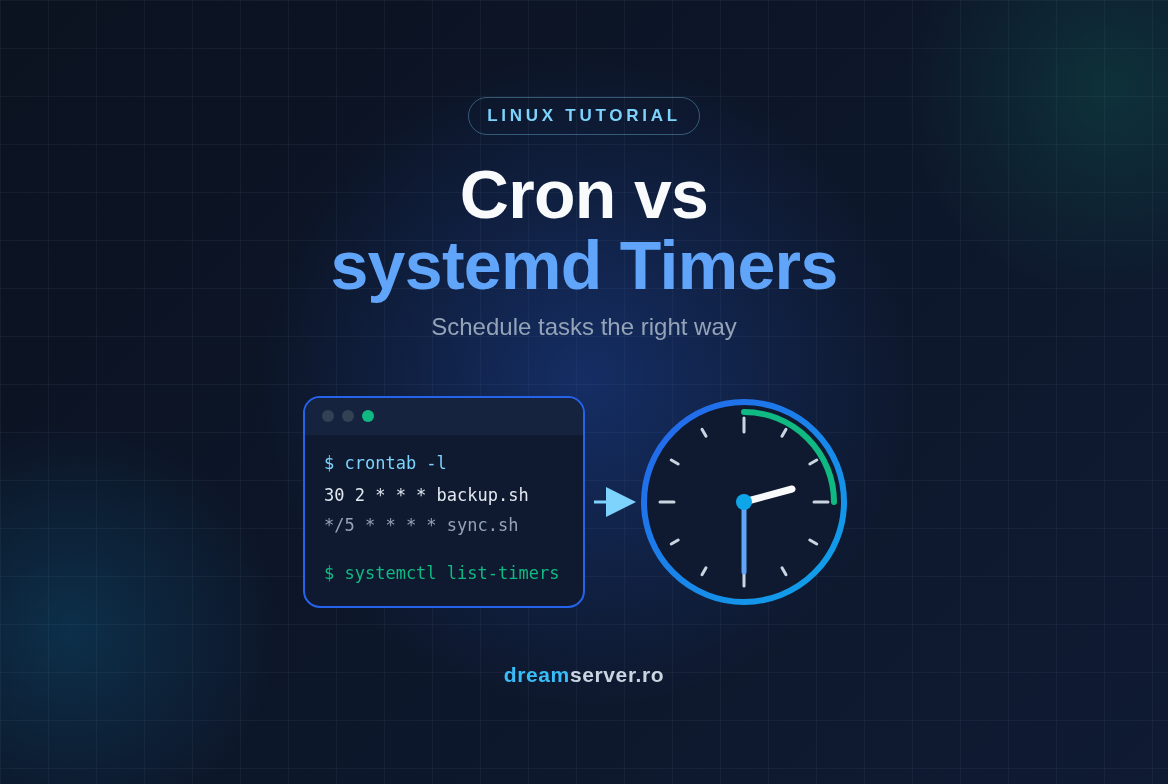
systemd Timer vs Cron: Schedule Linux Tasks the Right Way
Every server eventually needs to do things on its own: a backup at night, a cleanup of old files, a report on Monday morning, a cache that has to be warmed before customers wake up. On Linux the classic answer is cron, a scheduler older than many of the people using it. The modern answer is systemd timers, which are already running on your VPS right now, whether you have noticed them or not. Both work. Both also have quiet ways of failing, and the worst scheduled task is the one that silently stopped running three weeks ago and nobody noticed until the day they needed the backup.
In this tutorial we take one realistic job, a nightly backup of /etc and /var/www, and we set it up properly twice. First as a cron job with logging, a sane environment and protection against overlapping runs. Then as a systemd timer with persistence, a randomized delay, sandboxing and failure alerts. By the end you will understand the systemd timer vs cron question well enough to choose the right tool for each job, instead of copying whatever the first search result happened to use.
What you need
- A VPS running Debian 13 or Ubuntu 24.04 (a fresh DreamServer VPS is perfect), KVM or LXC.
- A user with
sudorights and SSH access to it. - A text editor in the terminal. We use
nano, but anything works. - About 30 minutes and basic comfort with the shell (running commands, editing a file).
Everything below is done as a normal user with sudo. Where Debian and Ubuntu behave differently, we say so.
Cron, systemd and timers in plain words
A few definitions first, because the rest of the article builds on them.
A daemon is a program that runs in the background all the time, waiting for something to do. cron is a daemon that wakes up once per minute, reads a set of tables and starts any command whose scheduled time matches the current minute. Each of those tables is called a crontab (cron table), and each line in it is one scheduled job.
systemd is the init system on Debian and Ubuntu: the very first process started at boot (process ID 1), which then starts and supervises everything else. systemd describes what it manages using units, small text files in INI format. A .service unit says “run this program, as this user, with these limits”. A .timer unit says “start that service at these times”. The timer is the alarm clock, the service is the job.
You do not have to take our word that timers are already in use. Run this:
systemctl list-timers --all --no-pager
On a fresh Debian 13 or Ubuntu 24.04 you will see entries such as apt-daily.timer, apt-daily-upgrade.timer, logrotate.timer, man-db.timer, fstrim.timer and e2scrub_all.timer. The columns show when each one runs next (NEXT), when it last ran (LAST) and which service it starts (ACTIVATES). Your distribution has already moved most of its own housekeeping from cron to timers, which is a hint about where things are heading.
The diagram below shows how each tool gets from “it is 02:30” to “the script is running”.
How a crontab line is built
A crontab line has five time fields followed by the command. In system files (/etc/crontab and /etc/cron.d/*) there is an extra field between them: the user the command runs as.
A few schedules you will use again and again:
| Schedule | Meaning |
|---|---|
*/5 * * * * | every 5 minutes |
0 * * * * | every hour, at minute 0 |
30 2 * * * | every day at 02:30 |
0 7 * * 1 | every Monday at 07:00 |
0 4 1 * * | on the 1st of each month at 04:00 |
@reboot | once, when cron starts after boot |
There are also shortcuts such as @hourly, @daily and @weekly. One classic gotcha: if you fill in both “day of month” and “day of week”, cron runs the job when either matches, not when both do. 0 4 1 * 1 means “the 1st of the month and also every Monday”.
Where cron jobs live
- User crontabs, edited with
crontab -e, stored in/var/spool/cron/crontabs/<user>. No user field, the job runs as you. /etc/crontab, the system table. Has the user field. Better left alone, because package upgrades may want to change it./etc/cron.d/, drop-in files with the same format as/etc/crontab. This is the cleanest place for system jobs: one file per job, easy to remove./etc/cron.hourly,cron.daily,cron.weekly,cron.monthly, folders of plain scripts run byrun-parts. On both Debian and Ubuntu,/etc/crontabruns the daily ones at 06:25, unlessanacronis installed, in which case anacron runs them and catches up on missed days.
Important naming rule for /etc/cron.d and the cron.* folders on Debian and Ubuntu: file names may only contain letters, digits, underscores and hyphens. A file called backup.sh or site.backup is silently ignored. This trips up a lot of people.
Finally, check that cron is installed and running. On Debian and Ubuntu the service is called cron (on Red Hat style systems it is crond):
systemctl status cron --no-pager
You want to see active (running). Ubuntu 24.04 always ships it. Some minimal Debian 13 images do not, and you get Unit cron.service could not be found. In that case install it:
sudo apt update && sudo apt install -y cron
The cron traps that bite everyone
Before writing our job, here are the reasons cron jobs “work in the terminal but not in cron”:
- A minimal environment. Debian and Ubuntu cron starts commands with
PATH=/usr/bin:/binandSHELL=/bin/sh. On both distributions/bin/shisdash, notbash, so bash-only syntax breaks. Your.bashrc, aliases, Python virtualenvs and anything in/usr/local/binor/usr/sbinare not there. - The
%character means “newline”. In a crontab command, an unescaped%ends the command and turns the rest into standard input.date +%Fmust be writtendate +\%F. - Output goes to email. Anything the job prints is mailed to the owner. On a VPS without a mail server, cron logs
(CRON) info (No MTA installed, discarding output)and the output, including error messages, is gone. - Nothing prevents overlap. If a job scheduled every 5 minutes sometimes takes 7, two copies run at once and may corrupt each other’s files.
- Time zones and daylight saving. cron uses the server’s time zone. In Romania the clocks change between 03:00 and 04:00 local time, so a job at 03:30 is skipped one night in March and is at risk of running twice one night in October. That is why we schedule at 02:30.
- Missed runs are simply missed. If the server is rebooting or powered off at 02:30, that night’s backup does not happen. cron does not catch up.
The first part of this tutorial defuses traps 1 to 5. Trap 6 is where systemd timers shine.
Part 1: a cron job you can trust
Here is the whole procedure at a glance. Steps 1 to 4 build the cron version, steps 5 to 8 turn the same job into a systemd timer.
Step 1: Write the job as a script
Rule number one of scheduling: never put real logic in the crontab line. Put it in a script with a clear name, full paths and proper error handling. The schedule then only has to call one file, and the same file can later be reused by a systemd timer without changes.
Create the backup folder and the script:
sudo mkdir -p /var/backups/site

sudo tee /usr/local/bin/site-backup.sh > /dev/null <<'EOF'
#!/usr/bin/env bash
# Nightly backup of /etc and /var/www into /var/backups/site
set -euo pipefail

DEST=/var/backups/site
KEEP_DAYS=14
SRC=()
for d in /etc /var/www; do
  if [ -d "$d" ]; then SRC+=("$d"); fi
done

mkdir -p "$DEST"
FILE="$DEST/site-$(date +%F_%H%M).tar.gz"

echo "$(date -Is) starting backup of: ${SRC[*]}"
tar -czf "$FILE" "${SRC[@]}"
find "$DEST" -name 'site-*.tar.gz' -mtime +"$KEEP_DAYS" -delete
echo "$(date -Is) done: $FILE ($(du -h "$FILE" | cut -f1))"
EOF

sudo chown root:root /usr/local/bin/site-backup.sh
sudo chmod 750 /usr/local/bin/site-backup.sh
What this does: tee writes the text between the two EOF markers into the file (the quotes around 'EOF' stop the shell from expanding $ variables while writing). Inside the script, set -euo pipefail makes it stop at the first failing command, which matters because a failed backup must exit with an error, not pretend everything is fine. It only includes the folders that exist, writes a dated archive, deletes archives older than 14 days and prints a start and end line with timestamps. Those two lines are our log. Notice that % is perfectly fine here: the escaping rule only applies inside the crontab line itself.
The last two commands make the script owned by root and not writable by anyone else. Since it will run as root, that is a security requirement, not a nicety (more in the security section).
Step 2: Test it in a cron-like environment
Running the script from your own shell proves very little, because your shell has a rich PATH and environment. Instead, simulate what cron gives it: an empty environment with just a few variables.
sudo env -i SHELL=/bin/sh PATH=/usr/bin:/bin HOME=/root LOGNAME=root \
  /bin/sh -c '/usr/local/bin/site-backup.sh'
env -i wipes every variable, then we set only the ones cron sets. Expected output, roughly:
2026-11-10T10:15:02+02:00 starting backup of: /etc /var/www
tar: Removing leading `/' from member names
2026-11-10T10:15:04+02:00 done: /var/backups/site/site-2026-11-10_1015.tar.gz (1.3M)
The tar message is a harmless warning on stderr. If /var/www does not exist on your VPS, only /etc is listed. Check the archive:
ls -lh /var/backups/site
If the test fails with command not found, your script relies on something outside /usr/bin:/bin. Either use the full path (/usr/sbin/whatever) or set PATH at the top of the script. Fix it here, not at 02:30 in production.
Step 3: Add the crontab entry with logging
For a system job, we use a file in /etc/cron.d. Note the name: no dots.
sudo tee /etc/cron.d/site-backup > /dev/null <<'EOF'
# Nightly backup, logic lives in /usr/local/bin/site-backup.sh
SHELL=/bin/bash
PATH=/usr/local/sbin:/usr/local/bin:/usr/sbin:/usr/bin:/sbin:/bin
MAILTO=""
# m  h  dom mon dow  user  command
30 2 * * * root flock -n /run/lock/site-backup.lock /usr/local/bin/site-backup.sh >> /var/log/site-backup.log 2>&1
EOF

sudo chmod 644 /etc/cron.d/site-backup
Line by line:
SHELL,PATHandMAILTOare variables that apply to every job in this file only. We give the job a normalPATHand turn off mail, since we log to a file instead.30 2 * * * rootmeans every day at 02:30, as root.flock -n /run/lock/site-backup.locktakes a lock file before starting the script. If a previous run still holds the lock,-n(non-blocking) makes the new run exit immediately instead of piling up. That defuses the overlap trap.>> /var/log/site-backup.log 2>&1appends both normal output and errors to a log file. Without it, everything the script prints would be thrown away.
The file must end with a newline (the heredoc takes care of that), must be owned by root and must not be writable by group or others, otherwise cron ignores it. cron notices new or changed files in /etc/cron.d on its own within a minute, no restart needed.
A log file that grows forever is its own problem, so let logrotate rotate it weekly (it is installed by default on Ubuntu and on standard Debian installs, run sudo apt install -y logrotate if it is missing):
sudo tee /etc/logrotate.d/site-backup > /dev/null <<'EOF'
/var/log/site-backup.log {
    weekly
    rotate 8
    compress
    missingok
    notifempty
}
EOF
Fun detail: on both distributions logrotate itself is started by logrotate.timer, a systemd timer.
Personal jobs without root. For a job that belongs to your user, run crontab -e (the first time it asks you to pick an editor) and add lines like these:
MAILTO=""
PATH=/usr/local/bin:/usr/bin:/bin
0 * * * * echo "$(date +\%F_\%H\%M) hourly check" >> "$HOME/cron-test.log" 2>&1
Here you see the % escaping in action: every % in the command is written \%. List your crontab with crontab -l.
Spreading the load with cron. If many servers or jobs share 02:30, you can add a random pause yourself. Because our file sets SHELL=/bin/bash, $RANDOM is available (it does not exist in dash), and note the escaped % again:
30 2 * * * root sleep $((RANDOM \% 900)); flock -n /run/lock/site-backup.lock /usr/local/bin/site-backup.sh >> /var/log/site-backup.log 2>&1
It works, but it is clumsy. Keep this in mind for step 6.
Step 4: Verify that cron ran it
Waiting until tomorrow night to find out is not a plan. Temporarily change the schedule so it runs every two minutes:
sudo nano /etc/cron.d/site-backup
Replace the first two fields 30 2 with */2 *, save (Ctrl+O, Enter) and exit (Ctrl+X). Wait two or three minutes, then look at cron’s own log. On Debian 13, which does not install a classic syslog daemon by default, cron logs only to the systemd journal:
sudo journalctl -u cron --since "10 min ago" --no-pager
On Ubuntu 24.04 the same command works, and because rsyslog is installed, you can also use grep CRON /var/log/syslog | tail. You should see a line like:
CRON[23817]: (root) CMD (flock -n /run/lock/site-backup.lock /usr/local/bin/site-backup.sh >> /var/log/site-backup.log 2>&1)
That proves cron started the job. Now check what the job itself said:
sudo tail -n 5 /var/log/site-backup.log
You should see the “starting” and “done” lines. Once it works, put the schedule back to 30 2 * * *, otherwise you will fill your disk with a backup every two minutes.
If you see the CMD line in the journal but nothing in the log, the redirect is wrong. If you see no CMD line at all, cron never read your file: check the file name, the user field and the permissions (see troubleshooting below).
Part 2: the same job as a systemd timer
We now have a solid cron job. Let us convert it, and see what we gain.
Step 5: Create the service unit
The service unit describes what to run and how. It knows nothing about time.
sudo tee /etc/systemd/system/site-backup.service > /dev/null <<'EOF'
[Unit]
Description=Nightly backup of /etc and /var/www

[Service]
Type=oneshot
ExecStart=/usr/local/bin/site-backup.sh
Nice=10
IOSchedulingClass=idle
# Hardening block: remove it if the service fails with 226/NAMESPACE
ProtectSystem=strict
ProtectHome=read-only
ReadWritePaths=/var/backups/site
PrivateTmp=yes
NoNewPrivileges=yes
EOF
What each part means:
Type=oneshottells systemd this is a task that runs and finishes, not a long-running server. The unit counts as “active” while the script runs, and systemd will not start a second copy while one is still running, so noflockis needed.Nice=10andIOSchedulingClass=idlelower the CPU and disk priority, so the backup does not slow down your website.- The hardening block is a free sandbox:
ProtectSystem=strictmakes the whole filesystem read-only for this job except the paths inReadWritePaths,ProtectHome=read-onlykeeps home folders read-only,PrivateTmpgives it a private/tmp, andNoNewPrivilegesblocks privilege escalation through setuid programs. If a bug in the script ever tried to delete the wrong folder, it simply could not.
There is no [Install] section: nobody enables this service directly, the timer starts it. Also note that the folder in ReadWritePaths must exist, which is why we created /var/backups/site in step 1.
On an unprivileged LXC container, some hosts do not allow the mount namespaces that these sandboxing options need, and the service fails with status=226/NAMESPACE. On a KVM VPS this does not happen. If you hit it, delete the five hardening lines and run sudo systemctl daemon-reload; everything else works the same in LXC.
Step 6: Create the timer unit
The timer describes when. By default it starts the service with the same name, so site-backup.timer starts site-backup.service.
sudo tee /etc/systemd/system/site-backup.timer > /dev/null <<'EOF'
[Unit]
Description=Run site-backup.service every night

[Timer]
OnCalendar=*-*-* 02:30:00
Persistent=true
RandomizedDelaySec=15min
AccuracySec=1min

[Install]
WantedBy=timers.target
EOF
The four settings in [Timer] are where systemd pulls ahead of cron:
OnCalendar=*-*-* 02:30:00is the schedule, in the formatweekday year-month-day hour:minute:second.*-*-* 02:30:00means every day at 02:30. Other examples:Mon *-*-* 07:00:00(Mondays at 07:00),*-*-01 04:00:00(1st of the month),*:0/5(every 5 minutes), or shortcuts likedailyandweekly. You can even add a time zone at the end, such as*-*-* 02:30:00 Europe/Bucharest, independent of the server setting.Persistent=truemakes systemd remember when the timer last fired (in/var/lib/systemd/timers/). If the server was off or rebooting at 02:30, the job runs shortly after the next boot. After a long outage it runs once, not once for every missed night. This is the fix for cron’s trap number 6.RandomizedDelaySec=15minadds a random delay between 0 and 15 minutes to each run. On a single server this hardly matters, but when many machines or many jobs share the same schedule, it prevents them from all hammering the disk, the network or the backup destination in the same second. If you prefer a delay that is random per machine but stable from night to night, addFixedRandomDelay=true(supported by systemd 255 on Ubuntu 24.04 and systemd 257 on Debian 13).AccuracySec=1minallows systemd to group wakeups within a one-minute window to save resources. One minute is the default; set it to1sif you need precision to the second.
Before trusting a calendar expression, ask systemd to explain it:
systemd-analyze calendar --iterations=3 "*-*-* 02:30:00"
Expected output, roughly:
  Original form: *-*-* 02:30:00
Normalized form: *-*-* 02:30:00
    Next elapse: Wed 2026-11-11 02:30:00 EET
       (in UTC): Wed 2026-11-11 00:30:00 UTC
       From now: 16h left
   Iteration #2: Thu 2026-11-12 02:30:00 EET
   Iteration #3: Fri 2026-11-13 02:30:00 EET
Cron never offered this kind of check. Here is why the randomized delay matters at scale, for example on a hosting platform where many customers pick the same time for their backups:
Step 7: Enable the timer and remove the cron entry
Tell systemd to read the new files, check them for mistakes, then enable and start the timer:
sudo systemctl daemon-reload
sudo systemd-analyze verify /etc/systemd/system/site-backup.service /etc/systemd/system/site-backup.timer
sudo systemctl enable --now site-backup.timer
daemon-reload is needed every time you create or edit a unit file. systemd-analyze verify prints nothing when the files are fine and points to the exact line otherwise. enable --now does two things: enable makes the timer start at every boot (you will see a “Created symlink” line pointing into timers.target.wants), and --now starts it immediately. Note that we enable the timer, not the service.
Confirm it is scheduled:
systemctl list-timers site-backup.timer --no-pager
NEXT                        LEFT     LAST PASSED UNIT              ACTIVATES
Wed 2026-11-11 02:38:51 EET 16h left -    -      site-backup.timer site-backup.service
The NEXT time is somewhere between 02:30 and 02:45 because of the random delay. That is expected.
Now the step everybody forgets: remove the cron entry, otherwise the backup runs twice every night, and the cron copy and the timer copy do not share a lock.
sudo rm /etc/cron.d/site-backup
Since the timer logs to the journal, you can also remove /etc/logrotate.d/site-backup and the old /var/log/site-backup.log once you no longer need them.
Step 8: Test, read the logs and add failure alerts
Run the job right now, through systemd, exactly as the timer would:
sudo systemctl start site-backup.service
systemctl status site-backup.service --no-pager
With a oneshot service, start waits until the script finishes. The status then shows inactive (dead) together with the last run result, for example Main PID: 24051 (code=exited, status=0/SUCCESS) and a line saying the unit finished or deactivated successfully. Inactive is the normal resting state for a oneshot job.
Everything the script printed is now in the journal, with timestamps, no redirect needed:
journalctl -u site-backup.service -n 20 --no-pager
A fresh Ubuntu 24.04 or Debian 13 normally keeps the journal on disk (the folder /var/log/journal exists), so these logs survive reboots. If ls /var/log/journal says the folder does not exist, create it with sudo mkdir -p /var/log/journal and run sudo systemctl restart systemd-journald.
Logs are great, but nobody reads them every morning. Let us make systemd tell us when the backup fails. First, a small template unit that reacts to failures. The @ in the name makes it a template: %i is replaced by whatever comes after the @.
sudo tee /etc/systemd/system/notify-failure@.service > /dev/null <<'EOF'
[Unit]
Description=Failure notice for %i

[Service]
Type=oneshot
ExecStart=/usr/bin/logger -p user.err -t systemd-failure "Unit %i failed on %H"
EOF
Then attach it to our service with a drop-in, a small extra file that adds settings to a unit without editing the original:
sudo mkdir -p /etc/systemd/system/site-backup.service.d
sudo tee /etc/systemd/system/site-backup.service.d/alert.conf > /dev/null <<'EOF'
[Unit]
OnFailure=notify-failure@%n.service
EOF
sudo systemctl daemon-reload
%n expands to the full unit name, so when site-backup.service fails, systemd starts notify-failure@site-backup.service.service, which writes an error line to the journal. Test the notifier on its own:
sudo systemctl start notify-failure@test.service
journalctl -t systemd-failure -n 5 --no-pager
You should see Unit test failed on <your-hostname>. Logging is just the starting point: replace the ExecStart line with a script that sends an email, posts to a chat webhook with curl, or pings a push monitor in a tool like Uptime Kuma. The mechanism stays the same for every service you attach it to.
Bonus: more timer tricks worth knowing
Monotonic timers. Besides wall-clock schedules, timers can run relative to events: OnBootSec=5min runs 5 minutes after boot, OnUnitActiveSec=1h runs one hour after the last activation. Combined, they give you “every hour, starting 5 minutes after boot”, something cron cannot express.
One-off tasks with systemd-run. Need something to happen once, in 10 minutes, without writing files?
sudo systemd-run --on-active=10min /usr/bin/touch /tmp/hello-from-systemd-run
It creates a temporary timer and service, visible in systemctl list-timers until it fires. There is also --on-calendar= for a specific date and time.
User timers. Regular users can have their own timers in ~/.config/systemd/user/, managed with systemctl --user. To make them run while you are logged out, enable lingering once: sudo loginctl enable-linger "$USER".
systemd timer vs cron: which one to pick
Here is the honest comparison after doing the same job both ways:
| cron | systemd timer | |
|---|---|---|
| Setup effort | one line | two small unit files |
| Logging | you redirect output yourself | journal, automatic |
| Runs missed while off | lost (anacron only covers daily jobs) | Persistent=true catches up once |
| Overlapping runs | need flock | prevented by default |
| Spreading load | manual sleep $RANDOM | RandomizedDelaySec |
| Priority, limits, sandbox | not built in | Nice, MemoryMax, ProtectSystem and more |
| Dependencies | none | After=, Requires= other units |
| Precision | one minute | down to the second |
| Portability | any Unix, containers without systemd | systemd systems only |
Pick cron for quick personal tasks, for one-liners you want to see at a glance in crontab -l, for systems or containers without systemd (most Docker containers do not run systemd inside), and when a tool or a colleague expects a crontab. A well-written cron line with full paths, logging and flock is perfectly respectable.
Pick a systemd timer for anything you would be upset to lose: backups, database dumps, certificate renewals, cleanup jobs that must not overlap, jobs that must catch up after maintenance reboots, and anything running on many servers at once. The extra file pays for itself the first time you run journalctl -u instead of guessing.
Troubleshooting and common mistakes
- Works in the terminal, not in cron. Almost always the environment. Use full paths, set
PATHin the crontab or script, and rerun theenv -itest from step 2. - No
CMDline in the cron log at all. The file in/etc/cron.dhas a dot in its name, lacks the user field, is group or world writable, or is not owned by root. Fix it withsudo chown root:rootandsudo chmod 644. No MTA installed, discarding outputin the journal. Your job printed something, and it was lost. Add>> /path/to/log 2>&1or switch to a timer.- File names or dates are cut off. An unescaped
%in the crontab line. Write\%, or move the command into a script. Permission deniedwhen the job starts. The script is not executable:sudo chmod 750 /usr/local/bin/site-backup.sh.- The job runs at the wrong hour. Check
timedatectl. To change the zone:sudo timedatectl set-timezone Europe/Bucharest, thensudo systemctl restart cron, because cron reads the time zone when it starts. Timers pick the change up on their own. - Timer shows
n/aunderNEXT. It is not active. Runsudo systemctl enable --now site-backup.timerand checksystemctl status site-backup.timer. - You edited a unit and nothing changed. Run
sudo systemctl daemon-reload. status=226/NAMESPACE. Sandboxing not available, typical in some unprivileged LXC containers. Remove the hardening block from step 5.Read-only file systemerrors from the script.ProtectSystem=strictis doing its job: add the folder you need to write toReadWritePaths=.- The backup runs twice a night. The old cron entry still exists next to the timer. Delete it as shown in step 7.
Security notes
- Root-run scripts must be root-owned and not writable by others. If a normal user can edit a script that root runs every night, that user effectively has root. Check with
ls -l /usr/local/bin/site-backup.sh. - Keep secrets out of crontab lines and unit files. Commands appear in
psoutput and in the cron log. Put passwords in a root-only file (chmod 600) that the script reads, or useEnvironmentFile=in the service with a file only root can read. - Do not run as root what does not need root. In a service, add
User=andGroup=for jobs that only touch one application’s files. In cron, put such jobs in that user’s crontab. - Restrict who may use cron. If
/etc/cron.allowexists, only users listed in it can runcrontab. - Use the free sandbox. The hardening block from step 5 costs nothing and limits the damage a buggy or compromised script can do.
- A backup on the same server is not a backup. If the disk or the VPS is lost, so are the archives. Copy them to another location, ideally off-site, as part of the same job or a second timer.
So, cron or systemd timers?
Both, used wisely. Cron is still a fine tool for small, visible, personal tasks, as long as you respect its quirks: full paths, escaped %, explicit logging and a lock. For anything important on a server, systemd timers give you persistence across reboots, randomized delays, no overlapping runs, a sandbox and logs in one place, for the cost of one extra file. Now that you have built the same job both ways, the systemd timer vs cron decision should take you seconds, not a search session.
You can practice everything in this tutorial on a VPS from our Romanian data center, ready in minutes with Debian or Ubuntu. And if you would rather have backups, scheduled jobs and alerting designed and watched by people who do this every day, our server administration team can set it all up for you.
FAQ
Do systemd timers replace cron completely?
On a modern Debian or Ubuntu server they can, and the distributions already use them for their own maintenance. cron is still useful for quick personal jobs, for portability and inside environments without systemd, so there is no need to uninstall it.
How do I run a systemd timer every 5 minutes?
Use OnCalendar=*:0/5 for every fifth minute of the clock, or OnUnitActiveSec=5min together with OnBootSec=1min for “5 minutes after the previous run”. Check calendar expressions with systemd-analyze calendar.
How do I see every scheduled task on a server?
For cron: sudo ls /var/spool/cron/crontabs/, cat /etc/crontab and ls /etc/cron.d /etc/cron.daily. For systemd: systemctl list-timers --all, plus systemctl --user list-timers for each user who has timers.
Do cron and systemd timers work inside Docker containers?
Usually not in the way you want, because most containers do not run systemd or a cron daemon. Schedule the work on the host instead, for example a timer that runs docker exec or docker compose run.
What does Persistent=true do after a long outage?
It runs the job once, shortly after boot, no matter how many runs were missed. Combined with RandomizedDelaySec, that catch-up run is also delayed randomly, so a fleet of servers coming back together does not overload anything.