Cronmaster: a decent web UI on top of the crontab you keep forgetting about
There’s a decent chance you have a crontab -l somewhere that reads like an archaeology dig: lines commented out since 2021, a job that runs twice because someone also added it to /etc/cron.d/, and no way to tell if last night’s run actually succeeded without digging through /var/log/syslog. Cron itself is solid, it’s been quietly ticking along for decades, but its management interface is a text file you edit with vi and hope you didn’t break the syntax.
Cronmaster is an open-source project, licensed under AGPL-3.0, that puts a modern web UI on top of the cron jobs running on a host (or a container), with human-readable syntax, live logging, and proper authentication. We evaluated it as an alternative to hand-editing crontab on servers where you actually want visibility into what’s running and when.
What Cronmaster actually is
Cronmaster is a Next.js + TypeScript app, styled with Tailwind CSS, shipped as a single Docker container. Instead of shelling out to crontab commands under the hood, it reads and writes the host’s crontab file directly, which lets it stay in sync with the actual system state in real time, even while Cronmaster itself runs containerized next to the host’s cron.
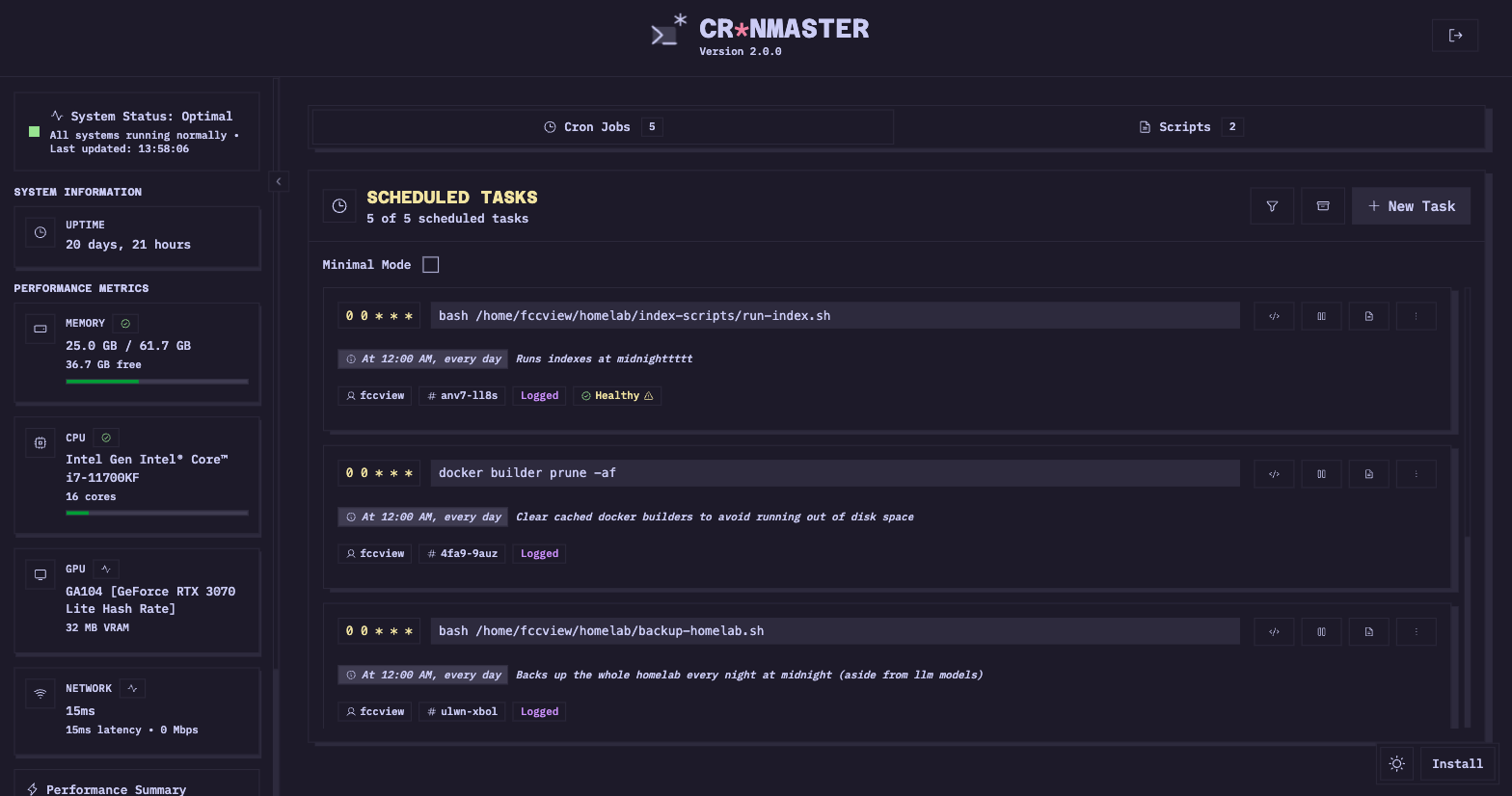
The UI shows your existing jobs in plain English (“every day at 3:00 AM” instead of 0 3 * * *), lets you create, edit, clone, and delete jobs straight from the browser, and ships with presets for common schedules so you’re not googling cron syntax for the tenth time.
Why this matters
The real problem with cron isn’t that it doesn’t work, it’s that it’s opaque. When a job fails silently at 4am, you find out only once someone notices the report is missing or the backup never ran. This is exactly what Cronmaster addresses: optional per-job logging (stdout, stderr, exit code, timestamp) with automatic cleanup, and live updates over Server-Sent Events, so you can watch a long-running job execute in real time from your browser instead of tail -f-ing some log file.
What you get out of the box
- Modern, responsive UI with dark/light mode.
- System monitoring: uptime, memory, CPU, GPU, and network info for the host, right in the same dashboard.
- Cron job management: create, edit, delete, clone, with human-readable syntax and quick presets.
- Bash script management: create and manage scripts straight from the UI, for use inside jobs.
- Optional execution logging, with automatic history cleanup, capturing stdout/stderr/exit code/timestamps.
- Live updates via SSE: real-time status and log streaming for long-running jobs.
- Smart execution: jobs with logging enabled run asynchronously with background updates; jobs without logging run synchronously with a 5-minute timeout.
- Full REST API, with optional API key authentication, for external integrations.
- Flexible authentication: simple password, OIDC/SSO (Authentik, Auth0, Keycloak, Okta, Google, Entra ID), or both at once.
- Localization across multiple languages, with support for custom translations.
- ARM64 and AMD64 support, so it runs on a Raspberry Pi just as well as an x86 VPS.
Installing Cronmaster on a VPS
Cronmaster runs exclusively as a container, and the official image is on GHCR. The minimal setup from the project’s README:
cat > docker-compose.yml << 'EOF'
services:
  cronmaster:
    image: ghcr.io/fccview/cronmaster:latest
    container_name: cronmaster
    user: "root"
    ports:
      - "40123:3000"
    environment:
      - NODE_ENV=production
      - AUTH_PASSWORD=your_strong_password
      - HOST_CRONTAB_USER=root
    volumes:
      - /var/run/docker.sock:/var/run/docker.sock
      - ./scripts:/app/scripts
      - ./data:/app/data
      - ./snippets:/app/snippets
    pid: "host"
    privileged: true
    restart: always
    init: true
EOF

docker compose up -d
Notice it runs privileged: true, mounts the Docker socket, and shares pid: host, because it needs direct access to the host’s crontab and, optionally, to other containers. That’s a high level of trust handed to the container, treat it accordingly (isolate it on a dedicated VPS, not next to other apps holding sensitive data).
For the firewall, only expose the UI port (40123 here) behind a TLS-terminating reverse proxy, never directly public without authentication already configured:
ufw allow 22/tcp
ufw allow 80/tcp
ufw allow 443/tcp
ufw enable
A modest VPS is enough for Cronmaster itself, but size it based on whatever runs inside the jobs you’re managing, not the management app.
Configuration patterns worth knowing
SSO instead of a shared password
If more than one person on the team needs access to the same cron jobs (say, DevOps plus on-call), configure OIDC instead of a shared password. Cronmaster supports any standard OIDC provider, so it plugs into whatever you already have (a self-hosted Keycloak, or Google/Entra ID if you’re already on those). You can enable both methods at once, handy for a local break-glass account plus SSO for everyone else.
Selective logging, not blanket logging
Don’t flip logging on for every job by default. Jobs without logging run synchronously with a strict 5-minute timeout, which is fine for short, deterministic tasks. Jobs with logging run asynchronously, making them the right choice for anything that runs longer or produces output you want to inspect later. Mixing the two up can produce unexpected timeouts on jobs that actually needed background execution.
API key for external integrations
If you already have an alerting system or an internal dashboard, use the REST API with API key authentication instead of scraping the UI. Full documentation lives in howto/API.md in the repo, and the API lets you read job status and logs programmatically, exactly what you need to fold Cronmaster into a broader monitoring flow.
Reusable script snippets
The bash script management feature lets you keep reusable code snippets attached to jobs. Instead of copy-pasting the same shell block into ten different jobs, you keep it in one place and reference it, cutting the risk that a fix gets applied to nine out of ten copies.
Where Cronmaster is not the right answer
If you have a single machine with two or three simple, stable cron jobs, spinning up a privileged container for that is overkill, just edit crontab directly and move on. Cronmaster also doesn’t replace a real workflow orchestrator (Airflow, Temporal, or even a job scheduler with proper retry logic and task dependencies); it’s still cron underneath, with the same limitations (no sophisticated automatic retries, no dependency DAGs). And given the privileged: true requirement plus Docker socket access, don’t put it on a multi-tenant host or a machine with other sensitive apps without seriously thinking through isolation first.
Alternatives we considered
- Cronicle : a more complete scheduler with clustering and job dependencies, but a steeper learning curve and a heavier install than a single container.
- Plain crontab +
healthchecks.io(self-hosted as Healthchecks ): keep cron simple and just bolt on monitoring via HTTP heartbeats, without changing how you manage jobs. - Ofelia : a minimalist Docker scheduler defined via container labels, no UI, but very lightweight if you’re already orchestrating everything with Docker Compose.
So, should you run it?
If you manage more than a handful of cron jobs and have ever caught yourself manually checking whether last night’s backup ran, Cronmaster is worth trying. The human-readable UI and live logging save real time, and the SSO support is welcome the moment you’re not the only one who needs access. Just weigh the privilege requirements seriously before putting it on anything that matters.
Want a dedicated VPS for your ops tooling, isolated from the rest of your infrastructure? Or would you rather hand off the setup and maintenance entirely? Our server administration service covers exactly that.