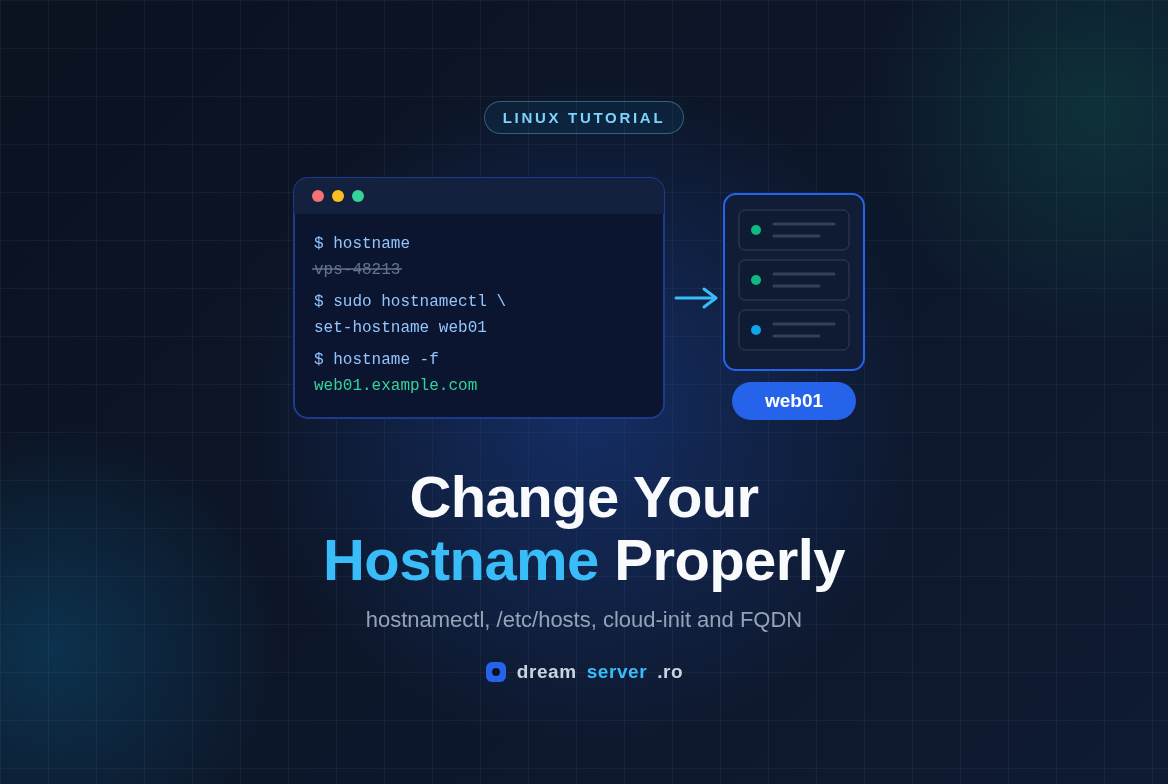
How to Change the Hostname on Ubuntu and Debian (Properly)
Every fresh VPS boots with a name somebody else picked: vps-48213, debian, ubuntu-2404-template or a random string from the provisioning system. You see it in your shell prompt, it is stamped on every log line, and it is the first thing your server announces when it talks to another mail server. Changing it looks like a one-liner, and technically it is. The trouble starts afterwards. You reboot and the old name is back, sudo begins every command with “unable to resolve host”, or the contact form on your website stops delivering mail because the receiving server does not like the name your VPS introduced itself with.
In this tutorial we change the hostname on Ubuntu 24.04 and Debian 13 the proper way. We set it with hostnamectl, make /etc/hosts agree with it, tell cloud-init to stop reverting it on every boot, and give the machine a fully qualified domain name (FQDN) backed by real DNS records, so that Postfix, Exim and the mail servers of Gmail or Outlook have nothing to complain about. Every command is explained, so you can follow along even if this is your first server.
What a hostname actually is
A hostname is simply the name a computer uses for itself. The Linux kernel keeps it in memory, programs ask for it when they need to label something (a log line, a shell prompt, an email header), and it is completely independent of your IP address or your website’s domain. Changing it does not move your server, does not change its IP and does not affect the visitors of your sites.
On a modern Debian or Ubuntu system, systemd distinguishes three kinds of hostname:
- Static hostname: the one stored in
/etc/hostnameand loaded at every boot. This is the one we care about. - Transient hostname: the one the running kernel uses right now. Normally it is identical to the static one; it can differ temporarily, for example when DHCP or a container platform sets something else.
- Pretty hostname: an optional free-form label such as “Shop web server”, with spaces and capitals allowed, used only for display.
Then there is the FQDN, the fully qualified domain name. It is the short hostname plus a domain you control: web01 is the hostname, web01.example.com is the FQDN. The kernel does not store the FQDN anywhere. When a program runs hostname -f, Linux takes the short name and looks it up, first in /etc/hosts (a small local file that maps names to IP addresses and is consulted before DNS) and then in DNS. Whatever full name it finds is the FQDN. That is why editing /etc/hostname alone is never enough.
Finally, most cloud-style VPS images include cloud-init, a tool that configures the machine on first boot: it creates your user, installs your SSH key, sets up the network and writes the hostname. On many images it also re-applies the hostname and regenerates /etc/hosts on every boot, which is exactly why “my hostname changes back after reboot” is such a common complaint.
Choosing a good hostname
Before typing anything, pick a name you will not want to change again in three months. The rules are short (they come from RFC 1123, the standard for internet host names):
- Use only lowercase letters
a-z, digits0-9and hyphens-. No underscores, no spaces, no dots in the short name. - Do not start or end with a hyphen, and stay under 63 characters. Shorter is friendlier, you will type it a lot.
- Describe the role, not the hardware:
web01,mail,db-prodorbackupage better thanbigboxorserver-new. - For the FQDN, use a domain you actually own and whose DNS you can edit. Avoid
.local, which is reserved for multicast DNS on local networks, and never invent a domain you do not control.
In this article we use web01 as the hostname and web01.example.com as the FQDN. Replace both with your own values everywhere, and replace 203.0.113.10 (an address reserved for documentation) with your VPS’s real public IP.
What you need
- A VPS running Debian 13 or Ubuntu 24.04, freshly installed or already in use. Everything here also works on Debian 12 and Ubuntu 22.04.
- SSH access as a regular user with
sudorights. - A domain where you can add DNS records (an A record, plus an AAAA record if you use IPv6).
- If the server sends mail: the ability to request a reverse DNS (PTR) record for your IP. On a DreamServer VPS you simply ask us, since we own the address space.
- About 15 minutes of work, plus some waiting for DNS.
The procedure at a glance
Steps 1 to 4 and step 6 are done on the server. Step 5 happens outside it, at your DNS provider and with the owner of your IP address. You can start step 5 first if you prefer: DNS changes take time to spread, so starting early saves waiting at the end.
Step 1: Check the current hostname and your environment
Start by looking at what the server thinks its name is:
hostnamectl
hostnamectl is systemd’s tool for reading and changing the hostname. The output looks roughly like this (IDs, versions and the kernel will differ on your machine):
 Static hostname: vps-48213
       Icon name: computer-vm
         Chassis: vm
      Machine ID: 3f1c...
         Boot ID: 8a2d...
  Virtualization: kvm
Operating System: Ubuntu 24.04.x LTS
          Kernel: Linux 6.8.0-...-generic
    Architecture: x86-64
Note the Virtualization line: kvm means a full virtual machine, lxc means a container, and that matters in step 4. Now look at the two files involved and at the FQDN:
hostname          # the short name the kernel reports
hostname -f       # the fully qualified name, looked up via /etc/hosts and DNS
cat /etc/hostname
cat /etc/hosts
On a fresh image hostname -f often prints the same short name, a name under the provider’s domain, or fails with hostname: Name or service not known. All of these are normal and we are about to fix them.
Next, check whether cloud-init is installed:
if command -v cloud-init >/dev/null; then cloud-init status; else echo "cloud-init is not installed"; fi
If you see status: done, cloud-init is present and step 4 is mandatory. If it is not installed, which is common on Debian installed from an ISO and in LXC containers, you can skip step 4.
Finally, list every configuration file that still mentions the old name, so you know what to update later:
sudo grep -rIl "$(hostname)" /etc 2>/dev/null
grep -rIl searches recursively, skips binary files and prints only file names. Typical results are /etc/hostname, /etc/hosts and, on a mail server, /etc/mailname and /etc/postfix/main.cf. Keep this list for later.
Step 2: Change the hostname on Ubuntu or Debian with hostnamectl
One command sets both the static hostname (written to /etc/hostname) and the transient one (the running kernel), so no reboot is needed:
sudo hostnamectl set-hostname web01
It prints nothing on success. Confirm the result:
hostnamectl hostname
cat /etc/hostname
Both should print web01. If you also want a descriptive label, set the pretty hostname separately. It changes nothing functionally:
sudo hostnamectl set-hostname --pretty "Shop web server"
Two things you will notice right away:
- Your prompt still shows the old name. Bash reads the hostname once, when it starts. Run
exec bashor log out and back in to refresh it. - sudo may print
sudo: unable to resolve host web01: Name or service not known. sudo looks up the machine’s own name, and/etc/hostsdoes not knowweb01yet. The command still runs, the warning is harmless, and it disappears after step 3. Do steps 2 and 3 back to back.
Short name or FQDN in /etc/hostname? You can technically run hostnamectl set-hostname web01.example.com. Debian’s documented convention, which Ubuntu follows as well, is to keep only the short name in /etc/hostname and let /etc/hosts and DNS provide the domain. We recommend the short name: hostname then returns web01 and hostname -f returns web01.example.com, which is what most software expects. Some control panels explicitly ask for the FQDN as the hostname; in that case follow their documentation, and still keep /etc/hosts consistent.
If hostnamectl fails. In some minimal containers the hostname service is not reachable, and you get an error such as Failed to connect to bus or a timeout. Then do the same thing by hand:
echo "web01" | sudo tee /etc/hostname
sudo hostname web01
Note that sudo hostname web01 on its own only changes the running name and is lost at the next boot. It is the most common mistake people make: always update /etc/hostname too.
Step 3: Update /etc/hosts
Make a backup, then open the file in an editor:
sudo cp /etc/hosts /etc/hosts.bak
sudo nano /etc/hosts
A correct file for our example looks like this:
127.0.0.1       localhost
127.0.1.1       web01.example.com web01

# The following lines are desirable for IPv6 capable hosts
::1     localhost ip6-localhost ip6-loopback
ff02::1 ip6-allnodes
ff02::2 ip6-allrouters
What each part means:
127.0.0.1 localhostmust stay exactly as it is. Many programs rely onlocalhostresolving to the loopback address. Never put your hostname on this line.127.0.1.1 web01.example.com web01is the Debian convention for “this machine’s own name”. The FQDN must come first, followed by the short name as an alias.hostname -freturns the first name on the matching line, so if you swap them it returnsweb01and you have no FQDN.- The IPv6 lines are the distribution defaults; leave them alone.
Replace the old hostname wherever it appears. If the file starts with a comment saying it is managed by cloud-init (“Your system has configured ‘manage_etc_hosts’ as True…”), your edits will be overwritten at the next boot until you complete step 4.
127.0.1.1 or the public IP? On a server with a fixed public address, the Debian reference documentation recommends using that address instead, so you replace the 127.0.1.1 line with:
203.0.113.10 web01.example.com web01
The practical difference: with 127.0.1.1, a program that resolves its own hostname and binds to it only listens on loopback, which surprises some Java and Erlang applications. With the public IP, such programs listen on the real interface. For a typical web or mail server either works, and we prefer the public IP on servers with a static address. Do not use it if your IP is assigned dynamically. If your VPS has a static IPv6 address, you can add a matching line such as 2001:db8::10 web01.example.com web01.
Save with Ctrl+O and Enter, then exit with Ctrl+X. Now verify:
hostname -f
getent hosts web01
getent hosts web01.example.com
Expected output (with the 127.0.1.1 variant):
web01.example.com
127.0.1.1       web01.example.com web01
127.0.1.1       web01.example.com web01
getent hosts asks the system resolver exactly the way other programs do, so if it works here, it works for sudo, Postfix and everything else. Try sudo true: the “unable to resolve host” warning should be gone.
Step 4: Stop cloud-init from reverting the hostname
If step 1 showed that cloud-init is not installed, skip to step 5.
Two cloud-init settings matter here:
preserve_hostname: whenfalse(the default), cloud-init may set the hostname from the provider’s metadata at boot. Whentrue, it never touches it.manage_etc_hosts: whentrue, cloud-init regenerates/etc/hostsfrom a template at every boot, erasing your edits.
Let’s see what your image currently uses:
sudo grep -rnE 'preserve_hostname|manage_etc_hosts' /etc/cloud/cloud.cfg /etc/cloud/cloud.cfg.d/ 2>/dev/null
Whatever it shows, the fix is the same. cloud-init reads /etc/cloud/cloud.cfg first and then every file in /etc/cloud/cloud.cfg.d/ in alphabetical order, with later files overriding earlier ones. So instead of editing the main file, which a package upgrade may replace, we add our own file with a high number:
sudo tee /etc/cloud/cloud.cfg.d/99-keep-hostname.cfg > /dev/null <<'EOF'
# Keep the hostname set with hostnamectl and our hand-edited /etc/hosts
preserve_hostname: true
manage_etc_hosts: false
EOF
tee writes what it receives into the file as root (a plain > redirect would run as your user and fail with “Permission denied”), and > /dev/null hides the echo on screen. Check the result:
cat /etc/cloud/cloud.cfg.d/99-keep-hostname.cfg
The paths and option names are identical on Debian and Ubuntu, and both use the same template, /etc/cloud/templates/hosts.debian.tmpl. If you prefer to keep manage_etc_hosts: true, edit that template instead of /etc/hosts. We find a hand-maintained /etc/hosts easier to reason about.
Recent cloud-init versions also notice when you changed the hostname yourself and leave it alone, but that depends on the version and on what the provider’s metadata contains. Do not rely on it: the file above makes the behaviour explicit.
Do not disable cloud-init entirely (with /etc/cloud/cloud-init.disabled) just for this. It would also stop provider features such as resetting your password or SSH key from the control panel.
LXC containers. If step 1 showed Virtualization: lxc, cloud-init is usually not involved. Instead, the container platform writes /etc/hostname and /etc/hosts every time the container starts, using the name configured on the host. In an unprivileged container you generally cannot change that behaviour from inside, so the clean fix is to change the name in your control panel or ask support to change it on the host side. On Proxmox-based platforms there is one exception: creating the empty files /etc/.pve-ignore.hostname and /etc/.pve-ignore.hosts inside the container tells the host to leave those files alone. Check with your provider before relying on it.
Step 5: Give the FQDN real DNS records (A, AAAA and PTR)
So far only the server itself knows that it is web01.example.com. The rest of the internet asks DNS, and for mail in particular, two directions have to match:
- Forward DNS: an A record (IPv4) and, if you use IPv6, an AAAA record saying that
web01.example.compoints to203.0.113.10. You create these wherever your domain’s DNS is hosted. - Reverse DNS: a PTR record saying that
203.0.113.10belongs toweb01.example.com. Only the owner of the IP address block can set it, which means your hosting provider, not your domain registrar. For a DreamServer VPS, open a ticket with the IP and the FQDN and we set it for you. Do the same for your IPv6 address if the server sends mail over IPv6.
When the PTR points to the name and that name’s A record points back to the same IP, you have forward-confirmed reverse DNS (FCrDNS). Receiving mail servers check this, and a missing or mismatched PTR is one of the most frequent reasons mail from a new VPS gets rejected or lands in spam.
If you do not have your public addresses at hand, list them:
ip -brief address show scope global
After adding the records, check them. dig comes from the bind9-dnsutils package on both Debian and Ubuntu; install it if the command is missing:
sudo apt install -y bind9-dnsutils
dig +short A web01.example.com
dig +short AAAA web01.example.com
dig +short -x 203.0.113.10
You want to see 203.0.113.10, your IPv6 address (if any) and web01.example.com. respectively. The trailing dot on the last answer is normal. If you still get old answers, the previous values are cached for the record’s TTL (time to live, the number of seconds resolvers may keep an answer); wait and try again.
Why step 5 takes the longest
The typing itself is fast. What takes time is DNS caches expiring and, for PTR records, the provider handling your request. That is why we suggested starting step 5 early.
Step 6: Reboot and verify that the hostname stays
The change is already live, but the only real proof that it is permanent is a reboot. Make sure nothing important is running for the next minute, then:
sudo reboot
Log back in after a minute and check everything in one go:
hostnamectl hostname
hostname -f
cat /etc/hosts
You should see web01, web01.example.com and your edited /etc/hosts, unchanged. On machines with cloud-init, also look at what it did during boot:
sudo grep -i "hostname" /var/log/cloud-init.log | tail -n 15
Look for a line saying that preserve_hostname is set and the hostname is not being changed. If instead you see the old name being written, re-check the file from step 4 for typos: YAML is picky, and the space after each colon is required.
Making mail and other services accept the new name
Some programs read the hostname only when they start, and some copied it into their own configuration when they were installed. This is where the list from step 1 pays off.
Postfix
Postfix announces myhostname in its SMTP greeting and in the HELO/EHLO command when it sends mail. Receiving servers expect an FQDN there that resolves in DNS, and many reject web01 or localhost.localdomain outright. On Debian and Ubuntu the Postfix installer copies the FQDN into /etc/postfix/main.cf once, so it does not follow your change automatically. Check the current values:
postconf myhostname mydomain myorigin mydestination
cat /etc/mailname
Then update them:
sudo postconf -e 'myhostname = web01.example.com'
sudo postconf -e 'mydestination = $myhostname, web01, localhost.localdomain, localhost'
echo "web01.example.com" | sudo tee /etc/mailname
sudo systemctl reload postfix
postconf -e edits main.cf safely. The single quotes keep $myhostname literal, so that Postfix expands it, not your shell. If this server also receives mail for whole domains, keep those domains in mydestination. On Debian-family systems myorigin = /etc/mailname, so this file decides the domain added to local senders like root: use the FQDN, or just example.com if you want local mail to appear as coming from the bare domain.
Send a test message to an external mailbox and look at its headers: the Received: line should show web01.example.com with your IP, and the authentication results should not complain about reverse DNS.
Exim
If you run Exim, Debian’s traditional mail transfer agent, update /etc/mailname as shown above and run sudo dpkg-reconfigure exim4-config. It asks for the system mail name again and regenerates the configuration.
Everything else
- Logs: journald uses the new name immediately. rsyslog, installed by default on Ubuntu 24.04 but not on Debian 13, caches the name at startup, so run
sudo systemctl restart rsyslog. - Monitoring agents: the Zabbix agent (
Hostname=in its config), Prometheus labels and backup tools often identify the server by its old name. Update them, or your dashboards will show a “new” server next to a dead “old” one. - Services that store the hostname in their data: RabbitMQ names its node and data directory after the hostname, and MySQL/MariaDB replicas use it for default relay log file names. On such servers, read the application’s documentation before renaming.
- Docker containers keep their own hostnames and need no change.
- SSH: host keys do not change with the name. If you start connecting with the new DNS name, your SSH client asks you once to confirm the key, which is expected.
Troubleshooting and common mistakes
sudo: unable to resolve host web01. /etc/hosts has no line for the new name, or contains a typo. Redo step 3 and test with getent hosts web01.
The old hostname is back after a reboot. It is cloud-init (step 4 missing or with a YAML typo), an LXC platform rewriting the files at container start, or you only ran sudo hostname. Check /var/log/cloud-init.log and the Virtualization: line from hostnamectl. If the name keeps coming from the provider’s metadata even with preserve_hostname: true, change it in the control panel or ask support.
hostname -f prints the short name. The FQDN is not the first name on the /etc/hosts line. The order must be IP FQDN shortname.
hostname -f prints localhost. Your hostname sits on the 127.0.0.1 line together with localhost. Give it its own line.
hostnamectl rejects or alters the name. Underscores, spaces and other special characters are not valid in a static hostname; hostnamectl may then set only a pretty name or a cleaned-up version. Stick to lowercase letters, digits and hyphens.
Mail bounces with “Helo command rejected: need fully-qualified hostname” or a reverse DNS error. Postfix still uses the old or short name, or the PTR is missing or points elsewhere. Fix myhostname and verify with the dig commands from step 5.
The prompt still shows the old name. Run exec bash or open a new session; nothing is wrong.
Security notes
- The hostname is public. It appears in SMTP banners, mail headers, reverse DNS and sometimes in error pages. Do not put customer names, internal network details or hints like
db-unpatchedin it. - Only use domains you control. If your FQDN sits under a domain you do not own, whoever owns it can publish conflicting records for your server’s name.
- Keep a backup and a second session. Editing
/etc/hostscannot lock you out of SSH, but breaking thelocalhostline confuses local services. We saved/etc/hosts.bak; restore it withsudo cp /etc/hosts.bak /etc/hostsif needed, and keep a second SSH session open while you work. - Keep cloud-init itself enabled. We changed only two settings, so provider features like password resets and SSH key injection keep working.
- Mail reputation follows names and IPs. A consistent FQDN and PTR, together with SPF and DKIM, help your mail get delivered. An inconsistent setup makes your IP look like a compromised machine.
So, is it worth doing properly?
Yes, because doing it badly costs more time later than doing it right takes now. Changing the hostname on Ubuntu or Debian is one hostnamectl command, but a name that survives reboots and that other servers trust needs all six steps: check, set, fix /etc/hosts, tame cloud-init, publish DNS with a matching PTR, and verify with a reboot. Do it once on a fresh server and you will not have to think about it again.
If you need a server to try this on, a VPS from us is ready in minutes, and since we operate our own IP space we set your reverse DNS on request. If you would rather have someone else handle hostnames, DNS, mail delivery and the rest of the setup, our server administration team can do it for you.
FAQ
Do I need to reboot after changing the hostname?
No. hostnamectl set-hostname applies the new name immediately. We reboot in step 6 only to prove that the change survives, and to restart services that cached the old name.
Should /etc/hostname contain the short name or the FQDN?
On Debian and Ubuntu, the short name (web01), with the FQDN provided by /etc/hosts and DNS. The FQDN also works if a control panel requires it, as long as /etc/hosts is consistent.
Does changing the hostname change my IP address or my website’s domain?
No. The hostname is only a label the server uses for itself. Your IP, your websites’ DNS records and existing TLS certificates are not affected.
Why does my hostname change back after a reboot on Ubuntu?
Almost always because cloud-init re-applies the name from the provider’s metadata or regenerates /etc/hosts. Step 4 fixes it with preserve_hostname: true and manage_etc_hosts: false.
Can I change the hostname in an LXC container?
Yes, but the container platform usually rewrites the hostname at each container start, so change it from the control panel or through support to make it stick.