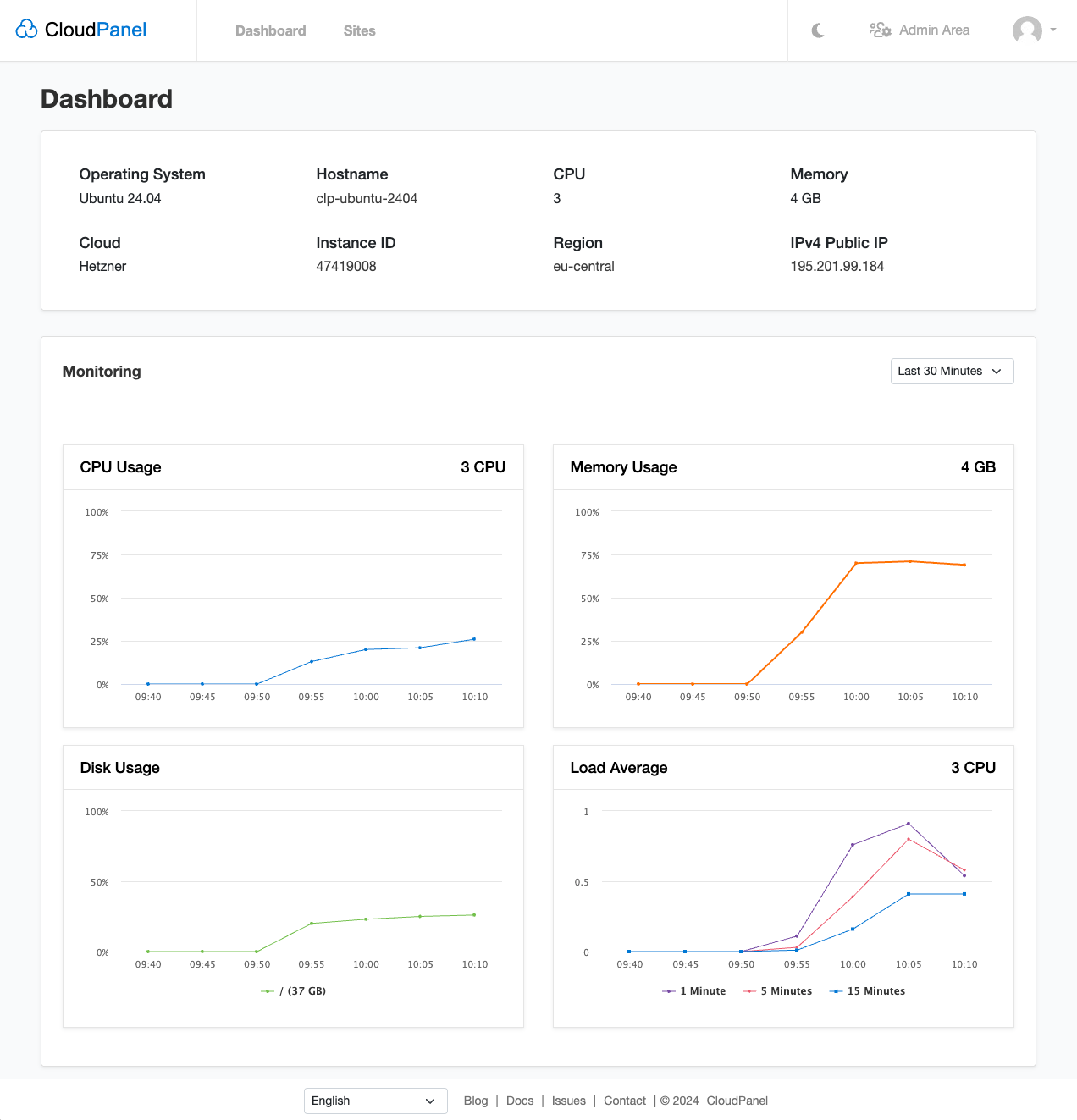
CloudPanel: a free server panel that does not feel cheap
If you have ever priced cPanel for a small fleet of VPSes, you already know the math is unkind. The per-account license, on top of the OS license if you went RHEL, on top of the server itself, turns a 5 EUR VPS into a 25 EUR VPS before you have served a single request. Plesk is in the same neighbourhood. The free alternatives have a habit of being either ten years behind on UI or quietly suspect about telemetry, which leaves a real gap for “modern panel, free, hosted on my own box”.
CloudPanel , the open-source panel from MGT-COMMERCE, has been settling into that gap for the last couple of years. The community edition is the only edition, which is a refreshing change from the freemium pattern. As of v2.5.3 (December 2025) it sits at roughly 1.8k stars on GitHub and ships cloud images for every major hyperscaler. We have been running it on a VPS in our Bucharest datacenter for several weeks. This is the field report.
What CloudPanel actually is
Architecturally, CloudPanel is a thin management layer over a hardened Nginx, PHP-FPM, MySQL or MariaDB stack. It is not its own web server, not its own database, not a Docker swarm or a Kubernetes wrapper. The panel writes Nginx vhosts, manages PHP-FPM pools per site, provisions Linux users so each site is isolated at the OS level, and exposes a UI to do all of that without you remembering the exact php-fpm config knob you wanted last Tuesday.
If that sounds dull, that is the point. The interesting design decision in CloudPanel is what it does not try to be: it is not a hosting reseller platform, not a billing system, not a mail server, not a DNS authoritative server. Those omissions are deliberate, and they are also the first thing to understand before you adopt it.
The stack you get
- Web tier: Nginx, configured as the front for every site. There is no Apache option.
- PHP: multiple versions installed in parallel (7.x and 8.x), switchable per site with a click. Running an old PrestaShop on 7.4 next to a Laravel 11 app on 8.3 on the same box is a non-event.
- Databases: MySQL 8.4, 8.0, 5.7 or MariaDB 11.8, 11.4, 10.11, 10.6. You pick one at install time via a
DB_ENGINEvariable, the rest are not installed. - Application types: PHP, Node.js, Python, static sites, and reverse-proxy passthroughs (handy for putting a panel-managed Nginx in front of an app you run elsewhere).
- TLS: Let’s Encrypt baked in, with HTTP-01 validation and auto-renewal.
The control plane itself is a Symfony PHP app behind its own Nginx vhost on port 8443. That single port is the entire management surface; close it to the world and the only people who can touch the panel are people on your management network.
What you get out of the box
The community edition (which, again, is the only edition) ships with:
- Site isolation at the OS level. Each site gets its own Linux user, its own PHP-FPM pool, its own home directory. A compromised WordPress on site A does not have read access to site B’s files. This is the single feature that matters most for shared environments.
- Free Let’s Encrypt SSL, one click per site, auto-renewed by cron.
- UFW firewall management with a sane default policy and a UI to add rules.
- Two-factor authentication for the panel admin, TOTP based.
- IP and Bot blocker, which lets you blacklist user agents and IP ranges without dropping into Nginx config.
- Cloudflare integration, primarily for trusting the right
X-Forwarded-Forchain so your access logs are not full of Cloudflare edge IPs. - Vhost templates per app type, pre-configured for WordPress, Magento, Symfony, Node, generic PHP, and so on. The templates are sensible (gzip, brotli, security headers) and editable.
- Per-site cron, FTP, file manager, and database management UI.
- Backup destinations to S3-compatible buckets, including MinIO and Backblaze B2, configurable per site.
What it does not ship: a mail server, a DNS authoritative server, a billing/customer portal, a one-click app installer like Softaculous, or any kind of multi-server clustering. If your mental model of a control panel is “cPanel feature parity”, CloudPanel will feel sparse. If your mental model is “the smallest thing that lets me stop hand-editing Nginx vhosts”, it will feel right-sized.
Installing CloudPanel on a VPS
The install path is genuinely a one-liner and the docs do not pretend otherwise. Minimum sane resources are 1 vCPU, 2 GB RAM, 10 GB disk. Supported OSes are Debian 11, 12, 13 and Ubuntu 22.04, 24.04 LTS, on x86_64 or arm64. Anything older than Debian 11 is not supported and you should not try.
On a fresh server, log in as root and update the base packages first:
apt update && apt -y upgrade && apt -y install curl wget sudo
Then run the installer. The exact command from the official docs (with sha256 verification, which you should not skip):
curl -sS https://installer.cloudpanel.io/ce/v2/install.sh -o install.sh; \
echo "6eac061df80f08b75224fcd7fce2f115e201696d8a6122e31abf7259a813b462 install.sh" | \
sha256sum -c && sudo DB_ENGINE=MYSQL_8.4 bash install.sh
Pick the DB_ENGINE value that matches your needs. Common choices are MYSQL_8.4, MYSQL_8.0, MARIADB_11.8, MARIADB_10.11. If you want MariaDB because your app stack assumes it, decide now, the database engine is not swappable post-install without manual surgery.
The script will install Nginx, PHP, the chosen database, the panel itself, and the supporting cron jobs. It takes 3 to 6 minutes on a 1 vCPU VPS, longer on slow disks.
Once it finishes, the management UI is at https://<your-server-ip>:8443/. The first request lands on a setup wizard where you create the admin user, and that is the moment of risk: between the install finishing and you completing the wizard, anyone who can reach port 8443 can claim the admin account. The official guidance is to access the panel “as fast as possible”. The better guidance is to firewall port 8443 down to your own IP before you even start the install:
ufw allow from YOUR_OFFICE_IP to any port 8443
ufw deny 8443
If you are running this on a DreamServer VPS , put the same rule in your provider-side network firewall too. Host-level rules are fine, network-level rules are better, both is correct.
After the wizard, turn on TOTP two-factor for the admin account from Account > Security. There is no excuse not to.
Adding a real PHP site with SSL
The mental model is: every site is an isolated user with a dedicated docroot under /home/<sitename>/htdocs/<domain>/. You do not edit Nginx vhosts by hand, the panel does that for you when you create or modify a site.
In the UI, Sites > Add site:
- Site type: pick the closest match (WordPress, Magento, Symfony, generic PHP, Node.js, static, reverse proxy). The template prefills sensible defaults for that app type.
- Domain:
example.complus any aliases. Wildcard subdomains are supported via DNS-01 if you wire it up to Cloudflare or Route53; otherwise stick to explicit names. - PHP version: 7.4 through 8.3 in the dropdown. Switchable later.
- Site user: the Linux user that will own this site. Defaults to a sane derivation of the domain.
Save, point your A/AAAA records at the panel host, then come back and click SSL/TLS > Let’s Encrypt. The panel does the HTTP-01 dance, drops the cert into /etc/nginx/ssl/, and reloads. Sixty seconds, no manual certbot.
To verify the site is actually live:
curl -I https://example.com
You should see a 200 (or your app’s redirect) and a server: nginx header. If you see Apache or anything other than Nginx, something is wrong with your DNS, not with CloudPanel.
Configuration patterns worth knowing
A few patterns we have found useful beyond the defaults.
Use the per-site PHP settings, not php.ini
CloudPanel exposes memory_limit, max_execution_time, upload_max_filesize, and friends per site in the UI. Use those. Editing the global /etc/php/8.3/fpm/php.ini works exactly once, until your next package update wipes it.
Vhost custom snippets, not direct edits
Every site has a Vhost > Custom snippets field where you can paste extra Nginx directives. Use that for cache rules, redirects, security headers. Do not edit the panel-generated vhost file directly; the next save through the UI will overwrite your edits.
Cron over web cron
For WordPress in particular, disable WP-Cron in wp-config.php (define('DISABLE_WP_CRON', true);) and add a real cron entry in the panel’s Cron Jobs tab. WP-Cron firing on every page load is one of the more common reasons a small WordPress site feels slow under modest load.
Backups: panel + filesystem, both
CloudPanel’s S3 backups are good for application files and databases. They are not a substitute for a full-VM backup. We pair the panel’s backups with Proxmox Backup Server snapshots at the hypervisor level, so a “rebuild this VPS from scratch” recovery is a single restore instead of a panel-reinstall plus a per-site restore.
Trust the bot blocker more than your gut
The IP and Bot blocker has a curated list of known scrapers and credential stuffers. Turn it on for any public site and check the access logs a week later. The number of requests it silently drops, mostly stale WordPress brute-force toolkits, is consistently higher than people expect.
CloudPanel vs the alternatives
For completeness:
- cPanel/WHM: the industry default, mature, expensive, RHEL-centric. If you bill clients per cPanel account and need feature parity with the rest of the cPanel ecosystem (CageFS, JetBackup, WHMCS integration), it is still the right answer. CloudPanel is not trying to compete here.
- Plesk: similar pricing tier to cPanel, friendlier UI, runs on more OSes. If you are already paying for Plesk and it works, there is no reason to switch.
- aaPanel: free, broad feature set, Chinese-origin with an opaque telemetry story that has made some operators nervous. The UI is dense in a way that CloudPanel deliberately is not.
- HestiaCP: free, fork of VestaCP, ships with mail and DNS, more “do everything” in scope. Older codebase, more rough edges, but the right pick if you specifically need bundled mail and DNS.
- CyberPanel: free community edition, OpenLiteSpeed-centric, optimized for LiteSpeed cache. Good if you have already committed to the LiteSpeed ecosystem; otherwise Nginx is more portable.
CloudPanel ended up being the cleanest fit for “I want a modern panel that manages Nginx, PHP and databases for a small number of sites, without giving me features I will not use”. Your weights might be different.
Where CloudPanel is not the right answer
Worth being honest about the limits.
- No mail server. If you need IMAP/SMTP hosting on the same panel, CloudPanel will not give it to you. You will run a separate mail box (or, more sensibly, route mail through a managed provider).
- No authoritative DNS. The panel does not run BIND/PowerDNS for you. You manage DNS at your registrar, at Cloudflare, or on a separate authoritative service. For our customers this is usually fine because we provide DNS at the LIR/network layer anyway.
- No multi-server. One panel manages one server. There is no concept of a cluster, no shared filesystem story, no failover. If you have more than a handful of servers, you are looking at orchestration tooling, not a panel.
- No customer billing. This is not a hosting-reseller platform. If you need to sell hosting plans with invoicing, you bolt the panel onto a separate billing system.
- Self-hosting is still self-hosting. You patch the OS, you watch the disk fill up, you deal with the occasional MySQL surprise. If your team does not want that, a managed service is cheaper in operator hours than free software is in your time.
So, should you run it?
If you self-host a handful of PHP, Node or Python sites on a VPS or dedicated server, and you have been hand-editing Nginx vhosts long enough to be bored of it, CloudPanel is worth a Sunday afternoon. The install is a single command, the UI gets out of your way, and the per-site Linux user model means a compromised plugin on one site is not a panel-wide incident.
If you are running it in production, put it on a server with a real backup story (Proxmox Backup, snapshots, your call), firewall the management port, and treat the panel as critical infrastructure. The Nginx and PHP configs the panel writes are easy to rebuild; the database of site definitions and users is what you would actually miss.
We run CloudPanel ourselves in front of a few internal sites and recommend it to customers who ask for “something between bare Nginx and cPanel”. If you want to try it on infrastructure you do not have to build first, our VPS plans start small enough to make the experiment cheap, and our server administration service covers the install and tuning if you would rather skip the learning curve. If something does not fit, get in touch and we will tell you honestly whether it is the right tool for the job.
The code is on GitHub , the install is one command, and you will know within an hour whether it earns a spot in your stack.